Sunday, April 27, 2025

Presentation - Designing AI-Powered APIs on Azure: Best Practices& Considerations

I had the privilege of delivering a session at the Perth Global AI Bootcamp at Microsoft. My topic was Designing AI-Powered APIs on Azure: Best Practices& Considerations

We explored various aspects of the AI solution design, aligning closely with the principles of the Azure Well-Architected Framework.

Following is the presentation I conducted

Following are few snaps from the event


Wednesday, April 2, 2025

Managing Azure Costs in an AI-Adopted Organization

As organizations increasingly adopt AI workloads on Azure, cost management becomes a critical concern. Unlike traditional cloud workloads, AI services introduce unique cost drivers that can lead to unexpected expenses if not properly governed.

Cost optimization is a key pillar of the Azure Well-Architected Framework. This post outlines a structured approach to managing Azure costs specifically for organizations running AI workloads.

1. Understanding AI-Specific Cost Drivers

Before applying any cost controls, it is important to understand what makes AI workloads different from standard cloud resources.

Azure OpenAI Service charges per token; input and output tokens are billed separately. Output tokens are non-deterministic, meaning a single user prompt can generate significantly more output than anticipated, especially at scale. I have seen organizations underestimate this by 2–3x during initial deployments.

Azure Machine Learning compute (particularly GPU-backed clusters) is billed by the hour regardless of whether a training job is actively running. A cluster left idle overnight can accumulate hundreds of dollars in unnecessary spend before anyone notices.

Following is a summary of the primary cost drivers to monitor:

  • Azure OpenAI Service – token consumption (input/output)
  • Azure Machine Learning – compute clusters (GPU/CPU), storage
  • Azure Kubernetes Service – node pools running AI inference workloads
  • Azure Monitor / Log Analytics – ingestion costs from AI application telemetry

2. Instrument Token Usage from Day One

The most effective way to control Azure OpenAI costs is to capture usage data before optimizing it. The Azure OpenAI API response includes token counts for every request. These should be logged alongside the calling service, user context, and model version.

Following is the relevant fields to capture from each API response:

{
  "usage": {
    "prompt_tokens": 120,
    "completion_tokens": 340,
    "total_tokens": 460
  }
}

Once this data is flowing into Azure Log Analytics or Application Insights, you can build cost attribution reports per feature, per team, or per user segment. This is a prerequisite for any meaningful cost governance conversation.

3. Right-Size Compute for AI Workloads

Not every AI workload requires GPU compute. This is one of the most common and costly misconfigurations I have encountered.

For model training, GPU clusters are appropriate. However, for inference workloads, particularly with smaller models, Standard_D or Standard_F series CPU instances are often sufficient and cost significantly less than GPU-backed VMs.

For Azure Machine Learning compute clusters, ensure the following settings are configured:

  • Set min_instances = 0 to allow clusters to scale to zero when idle
  • Configure idle shutdown on compute instances (15–30 minutes for development workloads)
  • Use low-priority (spot) compute for training jobs that are restartable, reducing compute costs by 60–80%

For organizations with predictable, sustained inference workloads, Azure Reservations and Provisioned Throughput Units (PTUs) for Azure OpenAI can provide significant savings compared to pay-as-you-go pricing.

4. Implement a Tagging Strategy for Cost Attribution

Without consistent resource tagging, it is impossible to attribute AI costs to the correct team, product, or cost center. This becomes a governance problem quickly in larger organizations.

I recommend enforcing the following tags on all AI-related resources using Azure Policy:

TagPurpose
workloadThe product or feature the resource supports
environmentprod, staging, or dev
teamOwning team for chargeback
cost-centerFinance reference for billing

Azure Policy can be configured to audit or deny resource deployments that are missing required tags. Without this enforcement, tagging coverage will be inconsistent: complete for resources created carefully, and absent for those created under pressure.

5. Configure Budgets and Anomaly Alerts

Azure Cost Management supports budget alerts at the subscription, resource group, and resource level. For AI workloads, I recommend setting alerts at 50%, 80%, and 100% of the monthly budget rather than relying on a single threshold.

Following is the recommended alert configuration for an AI workload resource group:

  • 50% alert – informational, sent to the engineering team
  • 80% alert – actionable, triggers a review of current spend trends
  • 100% alert – escalation, sent to both engineering and management

In addition to budget alerts, enable Cost anomaly alerts under Azure Cost Management. This feature detects unusual spend patterns. For example, a misconfigured retry loop hammering an Azure OpenAI endpoint will trigger an alert before the monthly total is significantly impacted.

Summary

AI workloads introduce cost patterns that are fundamentally different from traditional cloud resources. Token-based billing, GPU compute, and high-volume telemetry all require specific governance controls to prevent cost overruns.

By instrumenting usage data early, right-sizing compute, enforcing tagging through Azure Policy, and configuring meaningful budget alerts, organizations can maintain visibility and control over their AI spend, with no surprises when the invoice arrives.

Thursday, March 20, 2025

Optimizing Your Cloud Spending: Planning Resource Group Costs for the Next Year

Cloud cost management remains crucial even after migrating and modernizing your workloads. It's easy to overlook cost optimization once you've adopted the cloud. Without proper governance, you may end up overspending on unnecessary cloud resources.

That's why cost optimization is a key pillar of the Azure Well-Architected Framework. In this article, we’ll explore a structured approach to effectively control and manage costs for a specific Resource Group.

Following is the approach I took

1. Analysis with Daily costs report

First, we need to understand the historical costs for the specific Resource group. To gain these insights, navigate to the Cost Analysis section in Cost Management.

Let's change the scope to our target Resource group first


I like to start the analysis with the Daily Costs report. However, the daily view doesn’t provide meaningful insights for effective cost governance. To get a clearer picture, I change the granularity to Monthly.


This initially gives me only one data point. To gain a broader perspective, I adjust the time frame to one year.


Now, I can see that my usual monthly cost is around $70.


2. Analysis with Cost by resource

With the Daily Cost report, we gained a general view of our Resource group expenditure. Now, we can dive deeper using the built-in Cost by resource report. This will show how individual resources contribute to the monthly costs.

Navigate to the Cost analysis section and select the Cost by resource report.


Set granularity to Monthly as we did for the previous report 


Next, navigate to the time period filter and select Last 12 Months.


Finally, change the chart type to Column (Grouped) for better visibility and a clearer breakdown of resource costs.


Following is the final report I received


With this report, I can clearly see that the majority of the cloud spend for this Resource group comes from my Azure API Management instance.

3. Control and save costs

Now, let's explore how we can control and manage this expenditure for the next year. Ideally, we should review the Azure services within the Resource group and identify measures we can enforce to reduce costs.

In my example, I should focus on cost optimization measures for my APIM instance. One effective way to reduce costs is by implementing Auto-scaling, which adjusts resources based on demand, preventing unnecessary overprovisioning.

Here are some strategies to help reduce costs for your Azure resources:
  • Right-Sizing Resources
  • Use Reserved Instances
  • Leverage Spot Instances
  • Auto-scaling
  • Optimize storage
  • Turn-off unused resources

4. Monitor and govern costs

The next step is to ensure my costs for next year are properly planned and set up alerts to notify me of any deviations from my budget. This helps maintain control and take timely action to avoid unexpected expenses.

Let's create a Budget for my Resource group. To do this, navigate to the Budgets section in Cost Management, ensuring the Scope is set to the specific Resource group.


Click Add to create a new Budget. Then, provide the Creation date, Expiration date, and set a Budget amount. After my cost optimization efforts, I plan for a $60 monthly budget.


Next, I will set up conditions to generate alerts for any deviations or anomalies in my cloud spending. According to the following example, I have configured two Alert conditions.
  • Alert 1: Trigger an alert when actual spending reaches 80% of the budget ($48).
  • Alert 2: Trigger an alert when Azure predicts that spending will exceed 90% of the budget before the end of the current month.


These measures help me achieve cost optimization for my Resource group, ensuring better financial control and efficient cloud spending.

Tuesday, February 18, 2025

How to Obtain an Access Token for Azure Cost Management API Calls

In this article I will explain how to obtain an Access Token which will be used when calling Azure Cost Management APIs.

Following were the steps I used

Create an App Registration and Note the Tenant ID and Client ID


Next, generate a client secret and store it securely.


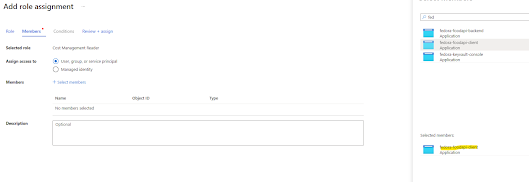
Our app registration is now successful. Next, we need to assign the service principal (app registration) the appropriate permissions to access cost data from our subscription.

Go to your Subscription, navigate to the Access Control (IAM) section, and click on 'Add role assignment.


We will assign the Cost Management Reader permission


Next, select the App registration we created and complete the role assignment process.


That's all we have to do within Azure portal. Let's construct our API request using Postman client

#URL
https://login.microsoftonline.com/{Tenant ID}/oauth2/v2.0/token

#METHOD
POST

#X-WWW-FORM-URLENCODED
grant_type=client_credentials
&client_id={Client ID}
&client_secret={Client Secret}
&scope=https://management.azure.com/.default


Following is the response I get with the access token


Monday, February 17, 2025

Optimizing Data Retention for Specific Tables in Azure Log Analytics Workspace

Application Insights plays a crucial role in applications hosted on Microsoft Azure. It is important to periodically review the associated Log Analytics Workspace instances to ensure they are properly governed and optimized.

The following areas should be examined for these resources in alignment with the Azure Well-Architected Framework.

  • Reliability
  • Security
  • Cost Optimization
  • Operational Excellence
  • Performance Efficiency
The following analysis aligns with Cost Optimization, Operational Excellence, and Performance Efficiency pillars of the well architected framework.

Recently, I noticed an increase in app usage for a client, leading to higher log volumes. 

We can easily analyze this pattern by navigating to the Log Analytics Workspace and checking the Usage & Estimated Costs section.


It is evident that AppTraces have increased recently, which may negatively impact overall query performance.

My Log Analytics Workspace is set to the default 90-day data retention period, which I prefer to keep unchanged to achieve cost optimization.


Since the outlier is only in the AppTraces table, I want to reduce the retention period specifically for that table. The expectation is to maintain a lower data volume in that container while keeping the overall workspace retention unchanged.

Following was the approach I used.

Navigate to Tables in the Log Analytics Workspace and select the AppTraces table.


Click on Manage Table to access the table settings.


Change the retention period to 60 days, which overrides the default retention setting for this table only.


That's it! The AppTraces table will now retain data for 60 days, reducing log volume while keeping the overall workspace retention unchanged.

Let's consider the opposite approach: How can you increase data retention while still optimizing costs?

You can also use this approach to optimize costs. For example, if you need to increase the retention period from 90 to 120 days, instead of applying the change to all tables, you can selectively extend retention only for the tables that truly require it. This helps balance cost efficiency and data availability.

Additional retention will incur costs based on the amount of storage consumed.


By strategically planning data retention for specific tables, you can effectively optimize costs.