Showing posts with label PowerPlatform. Show all posts

Monday, February 26, 2024

Understand your Azure spending: Harnessing Power BI to analyze monthly expenditure

Cloud cost management, a component of FinOps, presents a complex challenging exercise. Azure, being a public cloud, hosts diverse workloads across different service tiers and regions, making cost management a difficult task.

In this article, I will demonstrate how I developed a Power BI dashboard to delve into and analyze the costs associated with my usage

There are several methods to access usage and associated costs. While utilizing the Azure cost management API is one approach, for this article, I will opt for the monthly usage file, which offers a more convenient solution.

As the first step we need to navigate to the subscription and navigate to the invoices section.


Afterward, proceed to the 'More Options' section and download the usage file in CSV format for a designated billing period

Next, upload the CSV file to your Power BI environment. Once uploaded, you'll be able to view the schema in the data pane.


Let's begin creating our dashboard. Firstly, we'll analyze the cost by each resource type. To do this, drag the 'Cost' and 'MeterCategory' columns onto the canvas. Then, convert the visualization to a Pie Chart.


Now, let's proceed to our second visualization. This visualization will enable us to analyze the cost of each service based on the plan or tier. To achieve this, we will create a table displaying the 'Cost', 'MeterSubCategory', and 'MeterName'.


We've already gained some valuable insights! However, let's continue to delve deeper. We can examine the daily costs for specific resources. To do this, add another table displaying 'Cost', 'Date', and 'MeterName' as indicated below.


Moving on to our final chart, let's visualize the usage pattern for specific services over time. To accomplish this, we'll create a line chart incorporating the 'Cost', 'Date', and 'MeterName' fields.


Now, let's enhance the visual appeal by adding titles and formatting


Let's analyze a specific resource. If I want to analyze my costs and usage specifically on Cognitive Services, I can select that service from the first chart (Cost by Resource Type), and the other charts will filter accordingly.


I notice that I've spent more on GPT4 prompt tokens. To analyze further, I can navigate to my second chart (Cost by Resource Plan/Tier) and click on the relevant item.


This process helps me identify cost patterns and gain a better understanding of how Azure costing operates.

Thursday, February 24, 2022

Video - Azure Face API and Power Apps to try out your Sunglasses !!

In this video I explained how Azure Face API can be used with Microsoft Power Apps


Sunday, February 20, 2022

Azure Face API and Power Apps to try out your next sunglasses

I wanted to try out Face API features with Power Apps and thought of following use case.

Let's take Contoso, which sells sunglasses. They have a mobile application where customers can check sunglasses online. I need to ensure that, when they try out their new glasses, they should be properly placed on their eyes, Whatever the way they take their pictures!!

Can we do this with Face API?

Following is the expected result


Let me explain how I did this. Since this is a long post I will break the work in to following segments
  • Prepare the controls of Power App
  • Configure Azure Blob storage container and create connection
  • Configure Azure Face API instance and create connection
  • Script the application

Prepare the controls of Power App

Step 01: Create a new Power App from blank template

Step 02: Add a camera control


Step 03: Add a image control to show the picture taken from camera


Step 04: Add a toggle control switch between front camera and the back camera


Step 5: Add a button to upload image to Azure Blob Storage and to send the same image to Azure Face API


Step 6: Add another image control to place the image from Azure Blob storage and later overlay the sunglass image.


Step 7: Let's upload some images of sunglasses with transparent background. Later we will create three image controls and assign each image as the source


Configure Azure Blob storage container and create connection

Step 1: Create a blob container. we will make the container anonymous to keep it simple


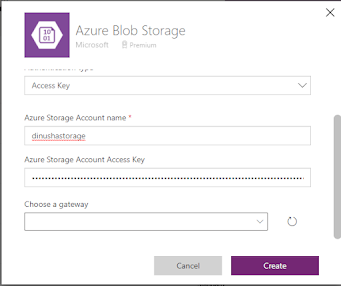
Step 2: Create Azure Blob Storage connector in Power Apps


Configure Face API instance and create connection

Step 1: Create a Face API instance. I selected the free pricing tier


Step 2: Copy API key and endpoint URL


Step 3: Create the Face API connector


Step 4: Navigate to Power App and connect the data source we just created


Now all the configurations are done!. Let's move to the functions.

Script the application

Step 1: When we deploy the application to mobile devices, we need to select the front facing camera. We will use the toggle control to switch cameras.


Select the camera control that we have added to the screen and change the Camera property


Toggle1.Value
Step 2: Using the OnSelect event in Camera control, place the photo in a collection. and initialize the fileName variable. This will be used later when saving the file in Blob storage


ClearCollect(facePic,Camera1.Photo);
Set(fileName,Concatenate(Rand(),".png"));

That's it for the Camera control.

Step 3: We will now do necessary changes in preview image control. We need to set the image source to the picture we took in previous step. We will initialize the Image property,


First(facePic).Url

Step 4: Let's initialize the Image value of our Image control which will be used to place the picture from Azure Blob storage. We will set the value when we click the action button.


azimage

Step 5: Let's do the configuration for the action button. There are two steps. First, we need to upload the image to Azure Blob storage.


AzureBlobStorage.CreateFile("/image2",fileName,First(facePic).Url);
Set(azimage, AzureBlobStorage.GetFileContentByPath("image2/"&fileName));

Then we will call the Detect operation in FaceAPI connector to get relevant landmarks

ClearCollect(faceLand,First(FaceAPI.Detect("https://dinushastorage.blob.core.windows.net/image2/"&fileName)).faceLandmarks);


Step 6: Now we can add the functionality for our sunglass image. We will initialize a variable for the Image property.


glassImage


Step 7: Now we will set the actual image for our sunglass. We have 3 images. in each control we have this code at OnSelect event.


Set(glassImage,'Sun-02');

Step 8: Let's place the sunglass image we have selected on top of my eyes. We will use face Landmarks to do the adjustment. Do following changes in sunglass image

Height

(First(faceLand).eyeLeftOuter.y - First(faceLand).eyebrowLeftOuter.y) + 100

Width

(First(faceLand).eyebrowRightOuter.x - First(faceLand).eyebrowLeftOuter.x) + 40

X

First(faceLand).eyebrowLeftOuter.x-20

Y

452+ First(faceLand).eyeLeftBottom.y -60

That's all we need to do. Your intelligent sunglass app is ready :)

Monday, April 20, 2020

Power BI - Consume on-premises data sources for external users with on-premises data gateway

In my previous post I illustrated how to use on-premises data gateway to expose on-premises data to Power BI.

I will show how external users can access those information.

Step 1: Ad external user to Azure Active Directory tenant


Step 2: Create a data source using the on-premises data gateway


Step 3: Create the data source in reports workspace


Step 4: Create test report


Step 5: Add permissions for external user


Let's try it out


By this way I was able to provide external user access to reports.