Showing posts with label SharePoint 2013. Show all posts

Wednesday, November 15, 2017

SharePoint Online : “2013 experience version will be used” when creating a Site Collection

Recently one of my customers asked whether we have SharePoint 2013 or 2016 in SharePoint Online. This was due to the label “2013 experience version will be used” which is visible when creating new site collections.

It’s true that the following notification is bit confusing

image

What is the meaning of this message?

Currently a fork of SharePoint 2016 is being used in SharePoint Online. However it uses SharePoint 2013 compatibility level to avoid any compatibility issues in site templates.

How to check the current compatibility level?

Get-SPOSite -Identity https://dinushaonline.sharepoint.com/sites/dev -detailed |fl

image

How to check the currently installed SharePoint version?

Navigate to a SharePoint Online site and inspect Response Headers. 16.0.0.7514 means a SharePoint 2016 implementation

image

Conclusion

Currently we have SharePoint 2016 in SharePoint Online with SharePoint 2013 compatibility mode to avoid compatibility issues. Microsoft will gradually upgrade to SharePoint 2016 experience near future.

Friday, July 28, 2017

Create IKEV1/V2 site-to-site VPN between Microsoft Azure and external networks using a StrongSwan VM

Microsoft Azure is a great place to host our IaaS workloads. We can create a complete setup using Azure IaaS features including but not limited to Virtual Machines, Virtual Networks, Gateways, etc..

It’s often a requirement to connect external networks to our Azure virtual network. Azure itself provides a great feature called Virtual Network Gateway which can be utilized to build Site-to-Site VPN connectivity with external network.

However, Azure Virtual Network Gateways still have some compatibility issues and other limitations. Some issues are as below

  • Some routes are still not supported.
  • We can use either IKEV1 or IKEV2 for a subnet but not both (either policy based or route based. but not both).

We don’t know, by the time you read this article, those issues may have fixed.

In my Azure environment, I have a SharePoint 2013 farm. I need to allow users from the external network to use my SharePoint farm by creating a trust between two environment. In order to perform that task I need a reliable Site-to-Site connection.

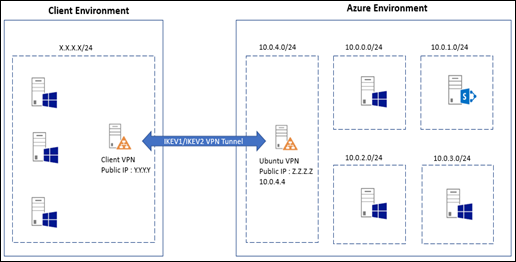
In this article I’ll show a reliable mechanism to create Site-to-Site VPN using a Ubuntu Linux VM and StrongSwan.

image

Following are the steps to be done at Azure environment

Prerequisites

  • Create Ubuntu 14.04 VM in Microsoft Azure environment
  • Public IP is available
  • IP can be forwarded
  • UDP ports 500 and 4500 is open

Steps

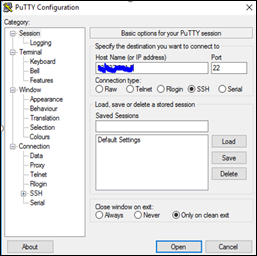
  • Create Ubuntu VM and connect to it using SSH client like PuTTy

image

  • Login as Root

sudo su
sudo apt-get update

  • Install OpenSSH server

sudo apt-get install openssh-server

  • Enable IP forwarding
echo "1" | sudo tee /proc/sys/net/ipv4/ip_forward
  • Navigate to /etc/iptables.rules and add following section

*nat
:PREROUTING ACCEPT [0:0]
:INPUT ACCEPT [0:0]
:OUTPUT ACCEPT [0:0]
:POSTROUTING ACCEPT [0:0]
-A PREROUTING -s 10.0.0.0/16 -j ACCEPT
-A POSTROUTING -d 10.0.0.0/16 -j ACCEPT
-A POSTROUTING -o eth0 -j MASQUERADE
COMMIT
*filter
:INPUT ACCEPT [0:0]
:FORWARD ACCEPT [0:0]
:OUTPUT ACCEPT [0:0]
COMMIT

  • Install StrongSwan and Update
sudo apt-get install strongswan
sudo apt-get upgrade strongswan
  • Navigate to /etc/ipsec.secrets and add following line. We will create the connection using Pre Shared Key (PSK) to create the VPN. We should create a matching entry in our client VPN device too.
Z.Z.Z.Z Y.Y.Y.Y : PSK "Password"
  • Add configurations for each Subnet as below. In this sample I have shown how to build a IKEV1 connection.

conn Client1
        authby=secret
        type=tunnel
        leftsendcert=never
        leftid=Z.Z.Z.Z
        left=10.0.4.4
        leftfirewall=yes
        leftsubnet=10.0.4.0/24
        rightid=Y.Y.Y.Y
        right=Y.Y.Y.Y
        rightsubnet=X.X.X.X/24
        keyexchange=ikev1
        rekeymargin=120s
        ikelifetime=3600s
        keylife=3600s
        ike=3des-sha1-modp1024!
        esp=3des-sha1!
        compress=no
        keyingtries=3
        reauth=no
        rekey=yes
        modeconfig=push
        auto=route

Building IKEV2 connection is also similar.

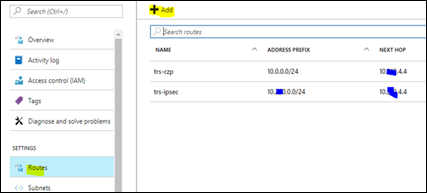
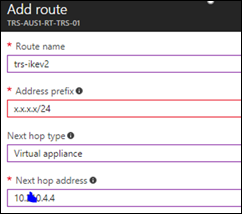
  • Create a user defined route in Azure

image

image

image

  • Start the VPN
    • ipsec update
    • ipsec secrets
    • ipsec restart

Following are the steps to be performed at client router

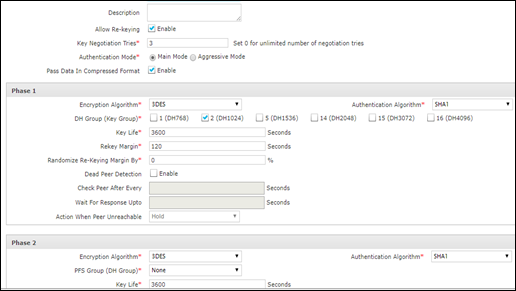
  • Create VPN Policy

image

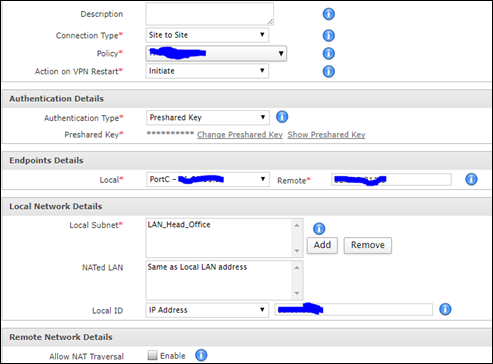
  • Create VPN Connection

image

After completing above steps I’m able to establish a connection between my Azure environment and client network.

By using StrongSwan I can create multiple IKEV1 and IKEV2 connections to my Azure network seamlessly

Wednesday, May 10, 2017

Presentation - Build real-time applications using SharePoint, Azure Service Bus and SignalR

I did a session on real-time applications with SignalR and Azure service bus for SharePoint Saturday Colombo 2017. I explained the concept and different technologies we can employ to build rich and real-time applications. Later I explained the approach to host such applications within SharePoint.

I will do a separate blog post explaining the steps required to a host real-time web application within SharePoint.

image

Following is the presentation I did

 
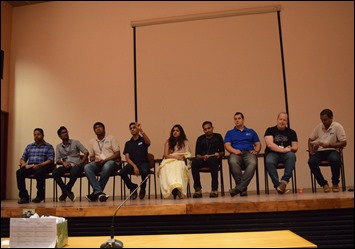
We had a room full of active participants Smile. It was nice to see some familiar faces after a long time.
 
DSC_0019   DSC_0059
DSC_0077 
We had a productive panel discussion as well.
DSC_0111

Monday, March 20, 2017

Presentation - A deep dive on SharePoint Authentication

We discussed about different authentication options in SharePoint at SharePoint Sri Lanka forum on 8th of March 2016.

17022096_10154847202392530_5755041721635751879_n

Following is the presentation I did

Thursday, January 19, 2017

SharePoint 2013 PowerPivot workbooks–Resolving error “We cannot locate a server to load the workbook data model”

I have a collection of PowerPivot Excel workbooks in a SharePoint 2013 farm. I had configured everything including a SQL Server Analysis Services (SSAS) server in PowerPivot mode and SQL Server PowerPivot Service Application.

Suddenly filters and sliders in my all PowerPivot reports stopped working throwing following error message.

          1

Then I checked ULS logs, which showed me the cause of the error

“Uncaught CLR exception crossing the Interop boundary: Microsoft.AnalysisServices.Streaming.ServerNotFoundException: There are no servers available or actively being initialized.   
at Microsoft.AnalysisServices.Streaming.OnPremise.ServerPool.Microsoft.AnalysisServices.Streaming.OnPremise.IServerPool.GetAvailableServers()”
   

That means, the Excel Services cannot locate my SSAS server. Following are the diagnostics I did

  • Check if the SSAS server is up – Success
  • Ping the SSAS server from SharePoint serve and vice versa – Success
  • Check if my SSAS PowerPivot instance is listed in Excel Services –> Data Model settings – Success
  • Check if relevant services are running from SQL Server Configuration Manager – Success
  • Check if firewall is enabled or ports are blocked – Gotcha !!

My domain firewall is enabled after a restart. Initially I kept it disabled to make things simple. But it seams that I need a concrete solution.

Following are the steps I used to open required ports

1. What are the ports need to be open?

As a practice I will open 2383, 2382 ports for a SSAS server. Since we have a named instance <SSAS Server>/PowerPivot, we need to open the custom port used by that instance.

2. How to find custom port for named SSAS instance

  • Navigate to “C:\Program Files (x86)\Microsoft SQL Server\90\Shared\ASConfig”
  • Open msmdredir.ini in text editor
  • Get the port specified in that file

         image

3. Configure a firewall rule

  • Open Windows Firewall with Advanced Security
  • Create a new Inbound rule
  • Specify following ports to open

           image

That fixed the issue.

Thursday, September 1, 2016

SharePoint JSOM : Alternative approach to nested executeQueryAsync with loops

Let’s assume that we need to get all pages in a site. Following are the steps we have to perform

  • Get all libraries
  • Get items in each library

Traditionally we would write a code like the below, but it will not provide expected response. This is due to the asynchronous nature of operations

Code that does not work

var context = SP.ClientContext.get_current();
var hostContext = new SP.AppContextSite(context, decodeURIComponent(getQueryStringParameter("SPHostUrl")));

var web = hostContext.get_web();
var lists = web.get_lists();
context.load(lists);

context.executeQueryAsync(
function () {
    var listEnumerator = lists.getEnumerator();
    while (listEnumerator.moveNext()) {
        var oList = listEnumerator.get_current();
        if (oList.get_baseType() === 1) {

            var camlQuery = new SP.CamlQuery();
            var items = list.getItems(camlQuery);
            context.load(items);
            context.executeQueryAsync(
                function () {
                    var listEnumerator = lists.getEnumerator();

                }, function (sender, args) {
                    console.log('error!');
                });
        }
    }
}, function (sender, args) {
    console.log('error!');
});

As the solution, I broke the functionality in to two methods using Deferred objects. I’ve written a blogpost on Deferred objects and you can find it from here. Following is the preferred approach.

Working code with Deferred objects

function getSitePages()
{
    var context = SP.ClientContext.get_current();
    var hostContext = new SP.AppContextSite(context, decodeURIComponent(getQueryStringParameter("SPHostUrl")));

    var web = hostContext.get_web();
    var lists = web.get_lists();
    context.load(lists);

    context.executeQueryAsync(
    function () {
        var listEnumerator = lists.getEnumerator();
        while (listEnumerator.moveNext()) {
            var oList = listEnumerator.get_current();
            if (oList.get_baseType() === 1) {

                var promise = getListItems(oList).then(function (state) {
                    console.log(state);
                });

            }

        }
    }, function (sender, args) {
        console.log('error!');
    });
}

function getListItems(list) {
    var dfd = $.Deferred();

    var context = SP.ClientContext.get_current();
    var hostContext = new SP.AppContextSite(context, decodeURIComponent(getQueryStringParameter("SPHostUrl")));
           
    var camlQuery = new SP.CamlQuery();
    camlQuery.ViewFields = "<FieldRef Name='FileExtension' /><FieldRef Name='Title' />";
    camlQuery.set_viewXml("<View><Query><Where><Or><Contains><FieldRef Name='FileLeafRef' /><Value Type='Text'>.aspx</Value></Contains><Contains><FieldRef Name='FileLeafRef' /><Value Type='Text'>.html</Value></Contains></Or></Where></Query></View>");
    var items = list.getItems(camlQuery);
    context.load(items);

    context.executeQueryAsync(
        function () {
            var itemsCount = items.get_count();
            if (itemsCount > 0) {
                obj = {};
                obj.ListName = list.get_title();
                obj.ListPages = [];

                for (var i = 0; i < itemsCount; i++) {
                    var item = items.itemAt(i);
                    obj.ListPages.push(item.get_item('FileRef'));
                }

                dfd.resolve(obj);
            }
                   
        }, function (sender, args) {
            dfd.reject(sender, args, errorMsg);
        });

    return dfd.promise();
}

Thursday, August 25, 2016

Resolving SharePoint PowerPivot Service error–“We're no longer connected to the database and can't refresh your connection. please close and reopen the workbook and refresh it”

One of my SharePoint environment had all SharePoint related services configured in one server (Single server topology). PowerPivot service application was one of them. Due to various reasons the Server had very limited resources.

Due to resource limitation, I was getting the above issue repeatedly. Until I upgrade the server I performed following actions to resolve the issue.

1. Restart PowerPivot instance in my SQL Server

image

2. Navigate to Manage Service Applications > Excel Services Application > Data Model Settings, and check the PowerPivot instance is available

image

3. Navigate to “Service on this Server” and restart “Excel Calculation Services” service

image

4. Navigate to “Service on this Server” and restart “SQL Server PowerPivot System Service ” service

image

5. Check the firewall and the network connectivity between SharePoint server and PowerPivot SQL instance

Wednesday, August 17, 2016

Collab365 - SharePoint Framework the future of SharePoint development

The largest online conference for SharePoint, Office365 and Azure is just around the corner. I will be speaking on the topic of “SharePoint Framework the future of SharePoint development

600x200_speakerbadge_GC

You can register by navigation to this site

SharePoint Framework

SharePoint Framework, a page and part model that enables fully supported client-side development, easy integration with the Microsoft Graph and support for open source tooling. This will be the trend for any SharePoint customization. In this session I will describe the SharePoint framework and walkthrough a practicel sample which uses AngularJS and Kendo UI. Furthermore I will talk about the approach we take to migrate current SharePoint solutions to the SharePoint Framework

In this session I will try to talk about the following

  • SharePoint Framework in general
  • Advantages of SharePoint Framework
  • How to migrate current projects
  • SharePoint Framework with AngularJS
  • SharePoint Framework with Kendo UI
  • Client side / OpenSource tooling
  • New solution deployment and release mangement
  • Demonstrations

Sunday, July 17, 2016

Disaster Recovery for SharePoint farms in Microsoft Azure IaaS using Azure Recovery Services

I had to implement Disaster Recovery (DR) strategy to one of my SharePoint farms deployed in Microsoft Azure. I used Azure Recovery Services to achieve the goal in addition to SharePoint site collection backups.

Following are the steps I used to create a recovery vault in my Microsoft Azure environment to protect my Virtual Machines

1. Look for Recovery Services vaults in Azure portal

image

2. Create a new vault

image

3. Select if you need locally redundant or geo-redundant storage. I selected locally redundant storage as my budget was limited

image

4. In this section we are creating a new Backup policy for Virtual Machines

image

image

5. In backup policy, specify required retention

image

6. Add virtual machines to the backup policy

image

7. Click on backup jobs to see the current status

image

8. We can see the backup configuration task has completed

image

9. But that’s not all. We have to execute the initial backup. Click on Azure Virtual Machines node to navigate to check current status

image

image

10. We have to select one Virtual Machine at a time to execute the initial backup

image

image

11. Once we run the initial backup job for each and every Virtual Machine in our SharePoint farm, we can see a result similar to the following

image

12. Once it is backed up according to the schedule, we can check the latest restore point as shown below

image

image

That is the easiest way to implement disaster recovery for a SharePoint farm hosted in Microsoft Azure.

Sunday, July 10, 2016

SharePoint 2013 in Azure IaaS–Map public url to internal DNS

One of my SharePoint environments was recently deployed in Microsoft Azure IaaS. I have following servers in that environment

  • Active Directory
  • SQL Server
  • Analysis Services Server
  • SharePoint Server

I have deployed the farm accordingly and created host named site collection using public URL “portal.contoso.com”.

I used following command to create the host based site collection

New-SPSite 'https://portal.contoso.com' -HostHeaderWebApplication 'https://portal.contoso.com' -Name 'Portal' -Description 'Portal' -OwnerAlias 'SP\SP_Admin' -language 1033 -Template 'BLANKINTERNETCONTAINER#0'

Then I mapped the public IP of the SharePoint server with my external DNS. Thereafter my SharePoint site is accessible from outside as below

But the public URL was not accessible within my server farm (e.g SharePoint server, or Analysis Services Server), And I need to have a more concrete solution than host files.

Following are the steps I used

1. Log in to domain controller and navigate to DNS Manager. Right click on Forward Lookup Zones and create new

image


image

image

image

image

2. Create new A record to SharePoint server

image

image

3. Test the connectivity

First clear the DNS cache

  • ipconfig /flushdns

image

That’s all we have to do. In the same way I had to map public URLs of my analysis services as well.

Wednesday, June 29, 2016

Change the address space of a Azure virtual network containing a functional server farm

I have recently deployed a SharePoint farm in Microsoft Azure Infrastructure as a Service (IaaS). That server farm contains following servers.

  • Domain Controller with DNS
  • File Server
  • SQL Server
  • Analysis Services Server
  • SharePoint Server

Furthermore I’ve configured Point-to-Site VPN connectivity as well. Following is how the environment was structured.

image

Everything looks good until I received a request to move everything to a different network address space. It seems that there was an internal network range which conflicts with my 11.0.0.0/16 address space. The only option is to move to a new virtual address space.

Following was the desired configuration.
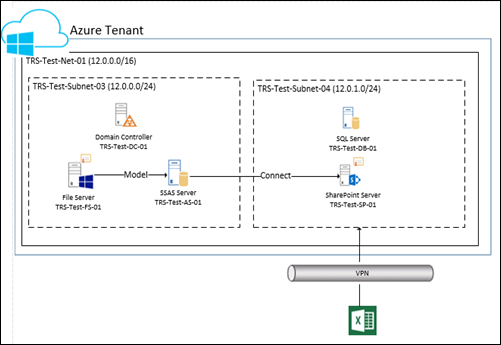
image

I had few challenges to overcome

  1. Move the environment to a new address space without corrupting my servers
  2. Consume the existing Domain Controller and DNS
  3. Continue to use my SharePoint server

Luckily I got recommendations from my good friend Janaka and received a great help from Denny Cherry to find a solution. This post is written to summarize the approach I took to move my environment to a new address space.

Okay. Let’s start the migration.

Following are the steps I followed.

1. Stop and deallocate all servers in the environment.

2. In Domain Controller remove the static IP assignment

image

3. Add a new Address Space in Virtual Network

image

4. Add new Subnets in that Address Space

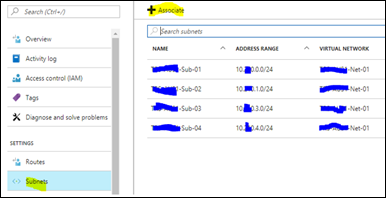
image

5. I have to execute some PowerShell commands. I need to get the names of network cards in each server prior to that

image

6. First we need to connect to the environment

Login-AzureRMAccount
Get-AzureRmSubscription
Get-AzureRmSubscription –SubscriptionName "My Subscription" | Select-AzureRmSubscription –SubscriptionName "My Subscription"

7. Declare variables

$rgname = "TRS-Test-Res-01"
$vnetname = "TRS-Test-Net-01"
$subnetName1 = "TRS-Test-Sub-01"
$subnetName2 = "TRS-Test-Sub-02"

$adNICName = "trs-test-dc-01646"
$fsNICName = "trs-test-fs-01971"
$dbNICName = "trs-test-db-01899"
$asNICName = "trs-test-as-01350"
$spNICName = "trs-test-sp-01892"

8. Get Virtual Network and Subnets

$vnet = Get-AzureRmVirtualNetwork -ResourceGroupName $rgname -Name $vnetname
$subnet1 = Get-AzureRmVirtualNetworkSubnetConfig -VirtualNetwork $vnet -Name $subnetName1
$subnet2 = Get-AzureRmVirtualNetworkSubnetConfig -VirtualNetwork $vnet -Name $subnetName2

9. Migrate the first server (Domain Controller)

$nicAD = Get-AzureRmNetworkInterface -ResourceGroupName $rgname -Name $adNICName
$nicAD.IpConfigurations[0].Subnet = $subnet1
Set-AzureRmNetworkInterface -NetworkInterface $nicAD

I have to do some extra steps to update the DNS server (Activities from step 10 to step 13).

10.  Start the Domain Controller server

11. In Virtual Network set the custom DNS

image

But still it shows 11.0.0.4 as the DNS server, when I checked within the domain controller

image

12. Execute following commands and restart the domain controller

  • ipconfig /flushdns
  • ipconfig /registerdns
  • dcdiag /fix

image

image

image

13. Check ipconfig /all again after the restart

image

Now the DNS servers are updated properly

14. Now we have to migrate other servers

#File Server
$nicFS = Get-AzureRmNetworkInterface -ResourceGroupName $rgname -Name $fsNICName
$nicFS.IpConfigurations[0].Subnet = $subnet1
Set-AzureRmNetworkInterface -NetworkInterface $nicFS


#SSAS Server
$nicAS = Get-AzureRmNetworkInterface -ResourceGroupName $rgname -Name $asNICName
$nicAS.IpConfigurations[0].Subnet = $subnet1
Set-AzureRmNetworkInterface -NetworkInterface $nicAS


#DB Server
$nicDB = Get-AzureRmNetworkInterface -ResourceGroupName $rgname -Name $dbNICName
$nicDB.IpConfigurations[0].Subnet = $subnet2
Set-AzureRmNetworkInterface -NetworkInterface $nicDB


#SharePoint Server
$nicSP = Get-AzureRmNetworkInterface -ResourceGroupName $rgname -Name $spNICName
$nicSP.IpConfigurations[0].Subnet = $subnet2
Set-AzureRmNetworkInterface -NetworkInterface $nicSP

15. Once all servers are migrated we need to restart them

16. Now we can delete Subnets from my previous environment (TRS-Test-Sub-01 and TRS-Test-Sub-02)

image

image

17. Later we can delete the Address Space of my previous environment

image

That’s all I had to do. Hope this helps someone .