Wednesday, April 7, 2021

Take actions based on IOT telemetry with IOT Hub, Event Grid and Logic App

This article is a continuation of my previous Post

With this article I'll explain how to notify users when a metric has reached a threshold value. In this example I will fire an email when the temperature exceeds 25c.

For this example also I'm using Raspberry Pi Azure IoT Online Simulator. (Kudos to the developers !!) 

In order to accomplish the task I need to cover following area

  • Configuration of IOT Hub to receive telemetry (Covered in previous post)
  • Creation of logic app to filter out relevant telemetry and notify
  • Connect IOT hub to Event Grid which uses WebHook to transfer IOT telemetry

Will start with the first part. Following are the steps I used create the logic app

Creation of Logic App

Step 1: Select when a HTTP request is received trigger

Click on Use sample payload to generate the schema link

Since we are expecting the telemetry payload, provide the following. You can get more information Here


{
    "body": [
        {
            "id": "a68df6bc-0fa3-16b1-fbfb-0f00c7677708",
            "topic": "/SUBSCRIPTIONS/AFC2F241-D12F-45C5-9791-72A633F51345/RESOURCEGROUPS/CONTOSO-RESOURCE/PROVIDERS/MICROSOFT.DEVICES/IOTHUBS/CONTOSO-HUB",
            "subject": "devices/iot-test",
            "eventType": "Microsoft.Devices.DeviceTelemetry",
            "data": {
                "properties": {
                    "temperatureAlert": "false"
                },
                "systemProperties": {
                    "iothub-connection-device-id": "iot-test",
                    "iothub-connection-auth-method": "{\"scope\":\"device\",\"type\":\"sas\",\"issuer\":\"iothub\",\"acceptingIpFilterRule\":null}",
                    "iothub-connection-auth-generation-id": "637795588618116304",
                    "iothub-enqueuedtime": "2022-02-05T14:02:38.4880000Z",
                    "iothub-message-source": "Telemetry"
                },
                "body": "eyJtZXNzYWdlSWQiOjkwLCJkZXZpY2VJZCI6IlJhc3BiZXJyeSBQaSBXZWIgQ2xpZW50IiwidGVtcGVyYXR1cmUiOjI2LjY2NDI1NDk5NDIyNzg1NywiaHVtaWRpdHkiOjY0LjQ2NDk5OTA1NjMwMDY3fQ=="
            },
            "dataVersion": "",
            "metadataVersion": "1",
            "eventTime": "2021-02-05T14:02:38.488Z"
        }
    ]
}


Step 2: This payload is retrieved as an array. We need to get the first item from the array in order to process

First we will initialize a variable and set value from the output from our POST Body.


Step 3: Again we will initialize a variable and use previously created variable and get the first element


Step 4: We will use the Parse JSON activity, and parse Body_Param variable. We use following JSON body to generate the schema


{
    "id": "a68df6bc-0fa3-16b1-fbfb-0f00c7677708",
    "topic": "/SUBSCRIPTIONS/AFC2F241-D12F-45C5-9791-72A633F51345/RESOURCEGROUPS/CONTOSO-RESOURCE/PROVIDERS/MICROSOFT.DEVICES/IOTHUBS/CONTOSO-HUB",
    "subject": "devices/iot-test",
    "eventType": "Microsoft.Devices.DeviceTelemetry",
    "data": {
        "properties": {
            "temperatureAlert": "false"
        },
        "systemProperties": {
            "iothub-connection-device-id": "iot-test",
            "iothub-connection-auth-method": "{\"scope\":\"device\",\"type\":\"sas\",\"issuer\":\"iothub\",\"acceptingIpFilterRule\":null}",
            "iothub-connection-auth-generation-id": "637795588618116304",
            "iothub-enqueuedtime": "2022-02-05T14:02:38.4880000Z",
            "iothub-message-source": "Telemetry"
        },
        "body": "eyJtZXNzYWdlSWQiOjkwLCJkZXZpY2VJZCI6IlJhc3BiZXJyeSBQaSBXZWIgQ2xpZW50IiwidGVtcGVyYXR1cmUiOjI2LjY2NDI1NDk5NDIyNzg1NywiaHVtaWRpdHkiOjY0LjQ2NDk5OTA1NjMwMDY3fQ=="
    },
    "dataVersion": "",
    "metadataVersion": "1",
    "eventTime": "2021-02-05T14:02:38.488Z"
}


Step 5: The telemetry field is in "body" field. Now we need to retrieve it. Again we will initialize another variable to hold the field


Step 6: Now we need to work with the telemetry string. Which is also a JSON. In order to do it first initialize a new variable. We need this to hold the later decoded value


Step 7: Our telemetry field is base64 encoded. for an example we get a value like this


"body": "eyJtZXNzYWdlSWQiOjkwLCJkZXZpY2VJZCI6IlJhc3BiZXJyeSBQaSBXZWIgQ2xpZW50IiwidGVtcGVyYXR1cmUiOjI2LjY2NDI1NDk5NDIyNzg1NywiaHVtaWRpdHkiOjY0LjQ2NDk5OTA1NjMwMDY3fQ=="

We can use an online base64 decoder to check


We can use expression to to decode 


Step 8:  Then we will parse the telemetry JSON string.

We can use following to generate the schema


{
  "messageId":90,
  "deviceId":"Raspberry Pi Web Client",
  "temperature":26.664254994227857,
  "humidity":64.46499905630067
}


Step 9: Now comes to the interesting part. Now we will evaluate the value of the temperature. If it is larger than 25, we need to send an alert. We use If/Else branch to evaluate the condition


Step 10: We can use an email service to send an email. I use Gmail provider. We can construct the body of the email as we wish


That's all we have to do from Logic App side. Let's save it

Connect IOT Hub to Event Grid and use WebHook to connect to Logic App

Step 1: Navigate to IOT Hub and click on Events. Then click on Event Subscription


Step 2: Create Event Grid Subscription and Select 

  • Device Telemetry event type
  • WebHook for the endpoint


What would be the url of our endpoint. Easy! We will navigate to our logic app and HTTP request action. Our endpoint URL is there


We will specify that URL for the WebHook


That's it.

Let's try this out


We can check from our logic app overview to see if it succeeded


Great!! Let's see if I got any email alert


That's all. Hope I covered everything here :)

Wednesday, March 24, 2021

Testing IOT Hub with Raspberry Pi Azure IoT Online Simulator

Internet of Things (IOT) is a hot topic these days. 

However, you might need to do a lot of groundwork in order to configure and maintain such service. Like creating the backend, hosting it somewhere and device management.

Furthermore what are you going to do with the telemetry data? You need to provide applications (Warehouse, Triggered functionality, etc..) separately based to your need.

That's where Azure IOT hub comes into the picture. It's a PaaS solution which is highly scalable and able to integrate with many other cloud resources.

IOT hub is designed to provide two way communication between the backend and your IOT devices.

Let's test this.

You can easily use Raspberry Pi Azure IoT Online Simulator to test the functionality without any physical device


Let's first create our IOT hub


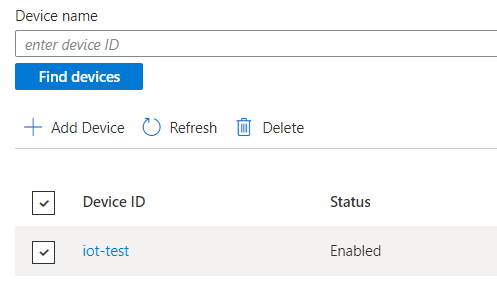
Navigate to Devices and click on Add Device


Click on the newly created device

Select the primary connection string


Paste the connection string on Raspberry Pi Azure IoT Online Simulator code


Now click on run to test


Great!! It is sending messages to Azure

Let's test it on the Azure side. I'm using Azure cloud shell to test

  • az extension add --name azure-iot
  • az iot hub monitor-events --hub-name contoso-hub

I'm getting response from the other side as well


What else can we do with this.

I wrote an article which extends this.

Tuesday, February 2, 2021

Working with Microsoft Graph and Microsoft Graph Explorer

We can have various Microsoft cloud products available in our organization. For example,

  • Online collaboration : Microsoft 365 (SharePoint, Exchange, TeamsO etc..)
  • Cloud Tenant : Microsoft Azure (Azure AD)
  • Live accounts (MSA)

In order to programmatically access your resources each service provides their own set of APIs. For example,

  • Live : apis.live.com
  • Azure AAD : graph.windows.net
  • Microsoft 365
    • outlook.microsoft.com/api
    • <tenant>.sharepoint.com/_api
They have their own authentication and relevant practices. What if we want,
  • to query resource across various service providers
  • to have a uniform set of API endpoints
Then your solution would be Microsoft Graph. This works as an abstraction layer on top of other resource providers


In order to test Microsoft Graph, Microsoft provides another tool called Microsoft Graph Explorer. With Microsoft Graph Explorer you can either connect to your tenant and interact with respective graph queries or you can use a sample account to try out.

When connecting to your tenant, you have to provide necessary permissions to Microsoft Graph application.


In order to illustrate, I will query for default SharePoint site


We can easily generate code snippets for our queries


Tuesday, August 11, 2020

How to correctly implement Agile Scrum to achieve optimum efficiency

I lead a large development team in my current organization. In order to achieve the optimum efficiency I created multiple scrum teams with their own defined goals.

Following are some guideline I followed

Step 01: Define smaller teams (around 10) with defined goals and matches their expertise


Step 02: Break your larger product goal in to smaller pieces. Generate measurable small requirements in the form of user stories.


Step 03: Define your sprint. We use 10 day sprints


Step 04: How do you govern releases? We define something called Definition of done


Above are some simple rules we follow. Hope this helps

Tuesday, July 14, 2020

Resolve read configuration data from file ‘\\?\’, line number ‘0’ issue in IIS

When we perform automated deployment to IIS, sometimes we encounter 503 errors with following message in EventLog 

Trying to read configuration data from file ‘\\?\<EMPTY>’, line number ‘0’

As a solution, I opened the command prompt (not PowerShell) as administrator and executed following commands

  1. net stop WAS /y
  2. rmdir /s /q C:\inetpub\temp\appPools
  3. net start W3SVC 

This resolved the error 

Thursday, June 18, 2020

Step by step - Configure Power BI report server configuration

Recently I configured Power BI report server. Following are the steps I followed

Step 1: Installation

Download link: https://powerbi.microsoft.com/report-server/


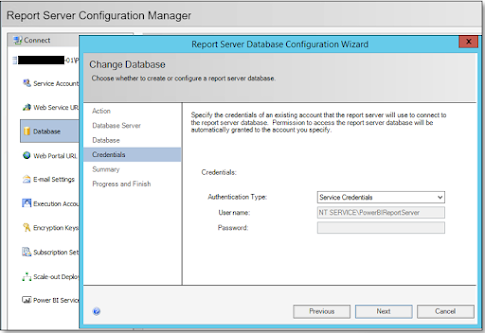
Step 2: Configuration


Step 3: Install Power BI Desktop

Download link: https://go.microsoft.com/fwlink/?linkid=861076


You can now create reports using Power BI desktop and Power BI report server!

Wednesday, May 6, 2020

Industrial Collaboration Event - University of Ruhuna

Recently I was invited for an industrial collaboration event organized by the Department of  Information and Communication Technology of University of Ruhuna.

This event was organized to strengthen the collaboration between the university and senior personnel of the industry as well as to bring new trends in to the curriculum.

I was able to point few gaps in the current course structure and the content. We collectively provide solutions to those shortcomings in order to provide the best education to students.

Furthermore I advised the academic staff to include some content from Cloud and FinTech areas as well

http://www.tec.ruh.ac.lk/pages/Industrial_Collaborations.php