Sunday, May 15, 2016

Lecture – Introduction to SharePoint at University of Colombo School of Computing (UCSC)

I did my first lecture at UCSC 12th of May 2016 as a guest lecturer. I was asked to do a lecture   for the subject, “Advanced Web Technologies”.

I did a session on SharePoint and how it complies with modern workplace trends.

Following is the presentation I used to conduct the session.

Sunday, May 1, 2016

Azure Roadshow 2016 – Microsoft Azure Notification Hub

Recently myself and Prabath did a session on “Azure Notification Hubs” in Azure RoadShow Sri Lanka event. We selected that topic because it is related to Azure mobile services and modern application development.

Notification Hubs handle end to end mobile notification including following features

  • Device registration
  • Message distribution
  • Message templating
  • Message targeting

Following is the presentation we did


Following are some pics taken from the event

1   2

3 4

5  6

IMG_1792

Monday, April 25, 2016

Resolve error : “This operation can be performed only on a computer that is joined to a server farm by users who have permissions in SQL Server to read from the configuration database. To connect this server to the server farm, use the SharePoint Products Configuration Wizard, located on the Start menu in Microsoft SharePoint 2010 Products” in SharePoint 2013 farm

Recently I came across an error like this in one of our SharePoint 2013 farms. The entire SharePoint farm was not available, even the Central Administration site gave me the exact error message

image

The error is related to database. Anyway I did’t do any changes to permission or any other modifications to bring my farm down. However I thought of checking the status of database server. I navigated to DB server and SQL Server Configuration Manager.

Due to some strange reason SQL Server service was stopped. It may be due to an unplanned restart of the server.

image

image

Once I started the service, my SharePoint farm came back to life

Thursday, April 7, 2016

Stop unresponsive SharePoint 2013 service application service using PowerShell

In SharePoint we have Services on this Server page to manage different services like User Profile Service and SQL Server Reporting Services Service. Using that interface we can easily stop certain services from some servers and start them in other servers.

In one of my SharePoint farms, I needed to stop certain services in a particular server. I click on the stop link, but it was stuck in “Stopping”

image

I tried restarting SharePoint Timer Service and other remedies found in internet, but i was not that lucky.

I tried PowerShell as well.

First get the GUID of the required service application service using following command

Get-SPServiceInstance
I used following command to stop the service
Stop-SPServiceInstance -Identity "297f0d12-c09e-4182-8c42-e28065a36027"

image

There seems to be an unresponsive job. Let’s see the job first.

Get-SPTimerJob | where {$_.name -like "job-service-instance-297f0d12-c09e-4182-8c42-e28065a36027"}

image

Let’s delete the Job

$deleteJob = Get-SPTimerJob | where {$_.name -like "job-service-instance-297f0d12-c09e-4182-8c42-e28065a36027"}
$deleteJob.delete()

image

Then we will use PowerShell command to stop the service

Stop-SPServiceInstance -Identity "297f0d12-c09e-4182-8c42-e28065a36027"

image

After few seconds the service was stopped successfully

image

Friday, April 1, 2016

Resolving SharePoint 2013 installation error : This product requires Microsoft .Net Framework 4.5

When I try to install SharePoint 2013 in Microsoft Azure Virtual Machine, I got a strange error. It says that I don’t have Dot Net framework 4.5 installed.

image

I’m pretty sure that I’ve configured prerequisites properly. Even I checked the installed features to check if I forgot the required framework.

image

After some research, I found out that this may due to an unsupported .Net framework version. Currently .Net framework 4.6 is not supported for SharePoint 2013.

First we need to find out currently installed .Net versions. To check that there is a nice tool called “.Net Framework Setup Verification Utility” . You can download the tool from this location.

image

OK. We found out the culprit. We have both 4.6 and 4.6.1 versions. We need to uninstall them.

We can uninstall the update from Add or Remove Programs in Control Panel.

Navigate to “View instaled updates”  -> “Uninstall an update” section and search for KB3102467. Then we need to uninstall it as shown below. Finally we need to restart the server.

image

image

image

image

After restarting the server we can verify the .Net framework version again.

image

Great. Now we have .Net Framework 4.5.2 as our latest update. All seems to be fine.

Let’s start the SharePoint installation wizard.

image

No more prerequisite errors now. We can proceed with the installation

Wednesday, March 23, 2016

Completely remove SSRS instance from SharePoint farm

In this article I’ll show how to completely remove SSRS instance setup in SharePoint 2013 integrated mode. Before reading on the uninstallation procedure, you can read this article on installing and configuring SSRS

When we install SSRS in SharePoint integrated mode, there are two components we need to configure. They are,

  • Reporting Services Add-In for SharePoint
  • Reporting Services – SharePoint

When uninstalling, we have to remove both of those components.

1. Removing Reporting Services Add-In for SharePoint

Remember, we have to setup Reporting Services Add-In in all SharePoint servers.So we have to remove them from all SharePoint servers in the farm.

Anyway uninstallation is straight forward. First you have to navigate to Add/Remove programs and uninstall the add-in as you would do for any other program
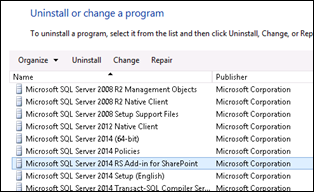
image

2. Removing Reporting Services – SharePoint

To remove this we need to log-in to our SSRS server, the server where our “SQL Server Reporting Services” instance is running in our farm. Then we have to navigate to Add/Remove programs again and perform following actions

image

clip_image001

clip_image003

clip_image005

clip_image007

3. Remove Service Application Databases

Above actions will not remove service application databases. You have to manually remove them from your database server

Thursday, March 3, 2016

Resolving Power Query error “Specified value has invalid CRLF characters.Parameter name: value” when connecting with SharePoint on-premises site

In Microsoft Office Excel Power Query, we have an option to connect with SharePoint lists. When I tried to test the functionality with on-premises SharePoint sites it was always giving me the error “Specified value has invalid CRLF characters.Parameter name: value”.

Following were the steps I used to connect with my SharePoint site

image_thumb34

image_thumb53

image_thumb42

image_thumb40

Unfortunately this was the error I got for all my on-premises environments

image_thumb3

I changed web application settings and enable anonymous authentication for that web application, but nothing worked for me. Then I tried with a SharePoint online environment. It worked perfectly!! So was that due to a SharePoint build difference?

I checked my on-premise SharePoint patch level. they were all patched with November 2014 CU. Ok, that was pretty old !!

Then I updated one of my SharePoint environments with the latest CU, which is the March 2016. You can download the CU from this location. You can read the relevant KB article from following location

After the update I was able to successfully connect to my SharePoint environments.

image_thumb25

image_thumb28