Wednesday, October 18, 2023

A Deep Dive into Microsoft Teams Adoption - Technical session for Arq Group

I had the privilege of leading two technical sessions for Arq Group, a division of NCS Australia, aimed at facilitating the transition to Microsoft Teams and Azure. Previously reliant on Slack, the organization now seeks to embrace the Microsoft ecosystem, and I was honored to guide them through this migration process.

The sessions saw a remarkable turnout, with over 400 enthusiastic participants actively engaging in the discussions and activities.


Wednesday, October 11, 2023

Enhance API Security: Safeguard against Cross-Site Scripting (XSS) attacks with Azure Web Application Firewall

In this article, I'll illustrate how Azure Front Door Web Application Firewall (WAF) shields against Cross Side Scripting (XSS) attacks, ensuring robust protection for your applications.

I'm leveraging Azure Front Door Premium, which includes a WAF policy with managed rulesets, providing enhanced security measures for my applications.

We will start the process by assigning the Microsoft Default ruleset to the WAF policy.


That's all we need to do. The WAF will handle the rest.

Let's attempt to simulate a Cross Site Scripting (XSS) attack.


Azure Front Door WAF has effectively countered the attack. Let's examine the WAF logs to review the outcomes. I'm utilizing a simple KQL query as below.

AzureDiagnostics
| where ResourceProvider == "MICROSOFT.CDN" and Category == "FrontDoorWebApplicationFirewallLog" 
and action_s == "AnomalyScoring"
| project requestUri_s, ruleName_s, details_data_s,details_matches_s, action_s


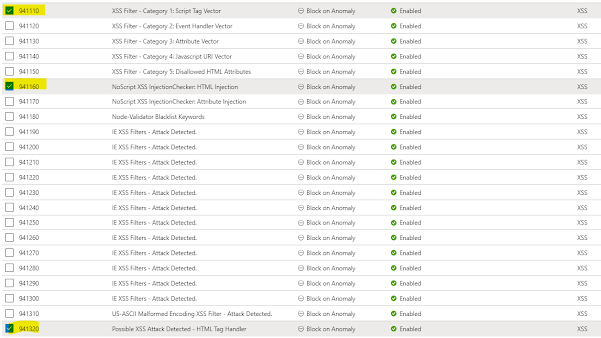
Here are some of the rules that intercepted our malicious request.


Thursday, September 14, 2023

Resolve Azure Data Explorer error - Principal 'aaduser=xxx' is not authorized to perform operation 'VersionShowCommand'

When provisioning a new Azure Data Explorer cluster and navigating to the query section, you may receive an error message stating that the principal 'aaduser=xxx' is not authorized to perform the operation 'VersionShowCommand'.


To resolve the issue, you must grant the necessary permissions to the user principal referenced in the error message.

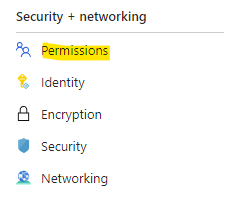
Begin by navigating to the Security + Networking section and selecting the Permissions menu.


Then, choose either AllDatabasesAdmin or AllDatabasesViewer based on your specific requirements.


Next, assign the user principal mentioned in the error message to grant the desired permission.


That's all you need to do. Now you can access the cluster


Tuesday, September 5, 2023

Designing an active/passive solution using Azure Front Door with priority based traffic routing

Suppose we aim to implement a solution in Azure while ensuring disaster recovery is effectively managed. In such cases, it's often necessary to deploy one instance of the solution as primary and another instance as the standby.

Remember, our objective is not to balance the load but to establish a disaster recovery solution.

The following diagram illustrates how to implement both load balancing and disaster recovery.


We can utilize Azure Front Door to implement the active/standby topology that we are interested in. Azure Front Door enables traffic routing based on latency, priority, round robin, and weighted round robin.

By employing priority-based traffic routing, we can establish an active/standby topology, which is ideal for disaster recovery implementation. According to the provided design, we should assign the same priority (e.g., 1) in the load balancing solution and a different priority (e.g., 2) for the disaster recovery solution.


To achieve this, you need to update the route you are interested in. You can apply a priority by changing the origin (represents an application server) of an origin group (represents application server collection/farm).


That's all you need to do. The secondary origin will receive the traffic when the primary origin is offline.

Tuesday, August 15, 2023

Secure Azure app services behind Azure Front Door using private link

When an Azure App Service is exposed through Azure Front Door, it utilizes the public address and directs the traffic over the public network. However, we can leverage Azure Front Door as the gateway and restrict all public traffic to our origin (Azure App Service app) by utilizing the Private Link integration feature available in Azure Front Door Premium.

Private Link integration enables Front Door to connect with your origin using the Private Link service. This approach eliminates the necessity for your origin to be accessed over the public internet. Instead, it permits Front Door to access the origin using Microsoft's backbone network.


This process establishes the Private Link connection for the origin and necessitates your approval at the origin.


Tuesday, August 1, 2023

Configure SonarQube in Azure Container Instances and connect with Azure DevOps pipelines for Static Application Security Testing (SAST)

Static Application Security Testing (SAST) is a type of security testing that analyzes the source code of an application for security vulnerabilities. SonarQube is a popular platform for SAST that provides powerful code analysis tools for identifying security issues in software code.

SAST is an essential part of a DevSecOps process. DevSecOps aims to integrate security into the development process to identify and fix security issues early in the software development lifecycle.

In this article I will illustrate how we can configure SonarQube in Azure and connect it in Azure DevOps pipeline to detect vulnerabilities early in the development stage. 

To organize this article, I will break the workload into two sections.
  1. Configure SonarQube community edition as a container in Azure Container Instances (ACI) with backend as Azure SQL instance
  2. Configure SonarQube in Azure DevOps
Let's start.

Step 1 - Configure Azure SQL database and SoarQube image in ACI

I found this article very useful in configuring with Azure CLI
# Login to Azure environment and select the subscription
az login
az account set --subscription "My Demos"


# Create SQL instance and firewall rules
az sql server create --name srv-sql-sonarqube --resource-group rg-sonarqube --location australiaeast --admin-user sonar --admin-password [Password]
az sql server firewall-rule create --resource-group rg-sonarqube --server srv-sql-sonarqube -n AzureServices --start-ip-address 0.0.0.0 --end-ip-address 0.0.0.0

# Create the database in SQL instance
az sql db create --resource-group rg-sonarqube --server srv-sql-sonarqube --name sonarqubeDb --service-objective S0 --collation SQL_Latin1_General_CP1_CS_AS
   
# Create a container instance with offical SonarQube image
az container create --resource-group rg-sonarqube --location australiaeast  --name sonarqube --cpu 2 --memory 3.5 --image sonarqube:7.7-community --os-type Linux --ip-address Public --environment-variables 'SONARQUBE_JDBC_USERNAME'='sonar' 'SONARQUBE_JDBC_PASSWORD'='[Password]' 'SONARQUBE_JDBC_URL'='jdbc:sqlserver://srv-sql-sonarqube.database.windows.net:1433;database=sonarqubeDb;user=sonar@srv-sql-sonarqube;password=[Password];encrypt=true;trustServerCertificate=false;hostNameInCertificate=*.database.windows.net;loginTimeout=30' --ports 9000 --protocol TCP
    
Once it is deployed, test your ACI instance as below


You can connect to SonarQube instance with admin/admin as default credentials and port 9000.

Now you need to generate a token which will be used when configuring this with Azure DevOps pipeline. For that, navigate to My Account and click on Security.


Step 2 - Configure SonarQube in Azure DevOps

Navigate to Organization Settings and Extensions. Then select the SonarQube from Marketplace


Install SonarQube extension


Then navigate to specific project that you want pipeline to be defined and select project settings. Then select Service connections.


Create new service connection and select SonarQube from the list


Specify properties according to your SonarQube instance. Use the token we generated in step 1


Now your configuration is completed. You can use the SonarQube instance to perform Static Application Security Testing (SAST).

Wednesday, July 12, 2023

Send email with exchange email using Azure service principal

Following is a generic method to send email with attachments using Azure service principle with Mail.Send permission.

This approach is more secure than classic SmtpClient.SendEmail method. Service principal approach allows you to authenticate using Azure Active Directory, which provides a more secure way of authenticating than using a username and password.

You need to supply Client ID, Tenant ID and Client Secret as parameters.


public async Task<bool> SendGraphEmailAsync(Email email,string clientId, string tenantId, string clientSecret)
{
	bool result = false;
	var clientSecretCredential = new ClientSecretCredential(tenantId, clientId, clientSecret);

	BlobService blobService = new BlobService();
	SharePointRepository sharePointRepository = new SharePointRepository();

	//method to get email template from blob storage template container
	var emailTemplate = await blobService.ReadFileFromBlob("Email-Template.html", "template");

	//method to get attachment from sharepoint
	var csvAttachment = await sharePointRepository.GetAttachmentFromSharePointAsBiyes(email.CSVName);

	var message = new Message
	{
		Subject = email.Subject,
		Body = new ItemBody
		{
			ContentType = BodyType.Html,
			Content = emailTemplate.ToString()
		},
		From = new Recipient
		{
			EmailAddress = new EmailAddress
			{
				Address = email.From
			}
		},
		CcRecipients = new List<recipient>
		{
			new Recipient
			{
				EmailAddress = new EmailAddress
				{
					Address = email.SingleCC
				}
			}
		},
		ToRecipients = new List<recipient>
		{
			new Recipient
			{
				EmailAddress = new EmailAddress
				{
					Address = email.SingleTo
				}
			}
		},
		Attachments = new List<microsoft .graph.models.attachment="">
		{
			new FileAttachment
			{
				OdataType = "#microsoft.graph.fileAttachment",
				Name = email.CSVName.Split('/').Last(),
				ContentType = "text/csv",
				ContentBytes = csvAttachment,
			}
		},
	};

	Microsoft.Graph.Users.Item.SendMail
	.SendMailPostRequestBody requestbody = new()
	{
		Message = message,
		SaveToSentItems = false
	};
	var scopes = new[] { "https://graph.microsoft.com/.default" };

	var graphClient = new GraphServiceClient(clientSecretCredential, scopes);

	try
	{
	   await graphClient.Users[email.From]
		.SendMail
		.PostAsync(requestbody);
		return result;
	}
	catch (Microsoft.Graph.ServiceException)
	{
		throw;
	}           
}

Hope that helps