Saturday, February 20, 2016

Prepare a SharePoint 2013 site for PowerPivot workbooks

Following are the steps I use to configure a SharePoint 2013 site to work with PowerPivot workbooks

Activate following site collection features

image

image

As a result Business Data webparts will appear in webparts collection

image

Create a Data Connection Library and add BISM content types

image

Configure Excel Services service application settings

image

image

image

image

image

That’s all we have to do. Now you can upload your workbooks.

Tuesday, February 9, 2016

Programmatically upload SharePoint app to a Site collection using feature receiver

Following is a code sample to add SharePoint App to a Site,using a feature receiver. In order to do the task, you should upload the app to the app catalog

private static string IntallApp(Guid currentSiteId)
{
    try
    {
        using (SPSite site = new SPSite(currentSiteId))
        {
            if (null == site.WebApplication.Properties["AppCatalogUrl"])
            {
                return string.Empty;
            }

            //get app catelog url from web application property
            var appCatalogSiteUrl = site.WebApplication.Properties["AppCatalogUrl"].ToString();
            using (SPSite siteApp = new SPSite(appCatalogSiteUrl))
            {
                using (SPWeb webApp = siteApp.RootWeb)
                {
                    SPList appList = webApp.Lists.TryGetList("Apps For SharePoint");
                    SPQuery query = new SPQuery
                    {
                        Query = "<Where><Eq><FieldRef Name=\"Title\" /><Value Type=\"Text\">MyApp</Value></Eq></Where>"
                    };

                    var items = appList.GetItems(query);
                    if (null != items && items.Count >= 1)
                    {
                        SPListItem appCatalogItem = items[0];

                        Guid appProductId = new Guid(appCatalogItem["AppProductID"].ToString());
                        using (SPWeb web = site.RootWeb)
                        {
                            IList<SPAppInstance> existingInstances = web.GetAppInstancesByProductId(appProductId);

                            if (existingInstances.Count > 0) throw new Exception("App is already installed in the target web");

                            //Get the permission XML
                            var appPermissionXml = appCatalogItem["AppPermissionXML"].ToString();

                            //read the client Id from the Permission XML
                            var xmlDoc = new XmlDocument();
                            xmlDoc.LoadXml(string.Format("<Approot>{0}</Approot>", appPermissionXml));
                            var root = xmlDoc.DocumentElement;
                            var clientIdNode = root.SelectSingleNode("//@ClientId");

                            //load the client id, title and stream
                            var clientId = clientIdNode.InnerText;
                            var appItemTitle = appCatalogItem.Title;
                            var appPackageStream = appCatalogItem.File.OpenBinaryStream();

                            //load the principal manager
                            SPAppPrincipalManager manager = SPAppPrincipalManager.GetManager(web);
                            //Check if the app principal is registered in this farm using client ID
                            SPAppPrincipal appPrincipal = manager.LookupAppPrincipal(SPAppPrincipalIdentityProvider.External, SPAppPrincipalName.CreateFromAppPrincipalIdentifier(clientId));
                            //if the principal not found then add
                            if (appPrincipal == null)
                            {
                                //end points  can be blank
                                List<string> endpoints = new List<string>();

                                //app  key
                                SecureString secureString = new SecureString();
                                DateTime now = DateTime.Now;
                                SPAppPrincipalCredential credential = SPAppPrincipalCredential.CreateFromSymmetricKey(secureString, now, now);

                                //create external parameters
                                SPExternalAppPrincipalCreationParameters sPExternalAppPrincipalCreationParameters = new SPExternalAppPrincipalCreationParameters(clientId, appItemTitle, endpoints, credential);
                                sPExternalAppPrincipalCreationParameters.SkipExternalDirectoryRegistration = false;

                                //register the principal
                                appPrincipal = manager.CreateAppPrincipal(sPExternalAppPrincipalCreationParameters);
                            }
                            //load it install in the target web
                            SPAppInstance appInstance = web.LoadAndInstallApp(appPackageStream);

                            //Trust the app
                            SPAppPrincipalPermissionsManager sPAppPrincipalPermissionsManager = new SPAppPrincipalPermissionsManager(web);
                            sPAppPrincipalPermissionsManager.AddAppPrincipalToWeb(appPrincipal, SPAppPrincipalPermissionKind.FullControl);

                            return appInstance.Id.ToString();
                        }
                    }
                    else
                    {
                        return string.Empty;
                    }
                }
            }
        }
    }
    catch (Exception ex)
    {
        throw ex;
    }

Tuesday, January 19, 2016

Disable warning : “Query and Refresh Data Be careful. The query to get the data might be unsafe so you should only refresh the workbook if you trust its source”. in excel service data refresh

In one of my environments, I got the warning message every time I refresh or drill down content in my workbooks. Following was the exact message

q

Following were the steps I used to resolve the error.

1. Navigate to Excel Services service application

image

2. Click on Trusted File Locations link

image

3. Click on the desired http URL, and untick the setting shown below

image

Monday, January 11, 2016

Configure Kerberos for SharePoint 2013–PowerShell Scripts

Recently I had to reconfigure an existing web application to use Kerberos authentication. The objective was to allow my Business Intelligence environment to use impersonation account for row level security.

In my environment I had a Domain Controller server, SQL Server, Analysis Server configured in Tabular mode and a SharePoint server

Following were the steps I used to perform the configuration

1. Prepare service accounts.

Following were my service accounts

  • SP\SP_C2WTS
SharePoint Claims to windows token service service account
  • SP\SP_Farm
SharePoint farm account
  • SP\SP_Services
ExcelServices app pool account
  • SP\SP_Services
PowerPivot app pool account
  • SP\SP_PortalAppPool
Web Application app pool account
  • SP\SP_Admin   
SharePoint installation account
  • SP\SP_UnattendedService
Excel services data refresh account

2. Add “SP\SP_C2WTS” Account to local administrator group in the SharePoint server

3. Set accounts in local security policy

image

image

image

image

4. Start the Claims to Windows Token Service in SharePoint

image

5. We have to change the service account for Claims to Windows Token Service.

$ct = "SP\SP_C2WTS"
$Identity = $ct
$ServiceTypeName = "Claims to Windows Token Service"

$Service = (Get-SPFarm).services | where {$_.typename -eq $ServiceTypeName}
$IdentityManagedAcct = Get-SPManagedAccount -Identity $Identity

$SvcProcessIdentity = $Service.ProcessIdentity
$SvcProcessIdentity.CurrentIdentityType = [Microsoft.SharePoint.Administration.IdentityType]::SpecificUser
$SvcProcessIdentity.Username = $IdentityManagedAcct.UserName
$SvcProcessIdentity.Update()
$SvcProcessIdentity.Deploy()

6. Create SPN Records

Setspn -S SP/C2WTS SP\SP_C2WTS
Setspn -S SP/Excel SP\SP_Services
Setspn -S SP/PowerPivot SP\SP_Services
   

7. Set SPN records for Web Applications

Setspn -S HTTP/portal.contoso.com SP_PortalAppPool
Setspn -S HTTP/my.contoso.com SP_ProfilesAppPool

8. Set SPN for SQL Server

Setspn -S MSSQLSvc/sql.contoso.com:1433 SP\SQL_Admin

9. Set SPN for Analysis Server Tabular

Setspn -S MSOLAPSvc.3/sql.contoso.com SP\SQL_OLAP_Admin

10. Set SPN for SQL browser

Setspn -S MSOLAPDisco.3/pivot.contoso.com SP\SQL_OLAP_Admin

11. Trust SharePoint Server for delegation

Navigate to Domain Controller and Active Directory Users and Computers

image[36]

image

12. Change Web Application settings

image

That’s all we have to do.

Tuesday, December 22, 2015

SharePoint 2013–Update password of a managed account using PowerShell

We can change the password of a SharePoint managed account from SharePoint central administration console as well as using PowerShell.

Fun fact here is that, we don’t need to do anything from our Domain Controller. When we update the password either from Central Administration or PowerShell, it will automatically update the user’s password in Active Directory.

Update managed account password in Central Administration

image

image

Update managed account password using PowerShell

Set-SPManagedAccount -identity SP\SP_Farm -NewPassword (Convertto-Securestring "mynewpassword" -AsPlainText -Force) -SetNewPassword

Thursday, December 10, 2015

Set home directories for multiple clients in CygWin SFTP–Windows Server 2012 R2

In one of my SharePoint environments, we have a file server configured with SFTP. SFTP is used to securely transfer content from each user using their comfortable FTP clients. Those content will later be processed by custom tool and uploaded to analysis server for data analysis.

We have configured SFTP using CygWin.

The environment need to support multiple clients where each client has multiple users. Following were some requirements

  • Separate drive (“F”) to store uploaded content
  • Each client should have a folder under SFTP root data directory
  • Each user should have a separate folder under his client
  • Specific user can interact with his own content only
  • Specific user can’t view other users folders

Following were the steps I used to configure home directories and their permissions

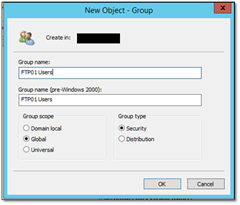
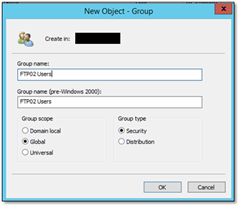
1. Create domain user groups in Domain Controller

image7

image9


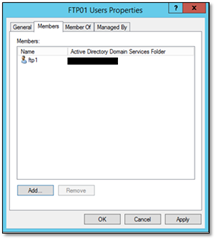
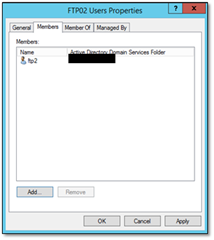
2. Add users to respective user groups (clients)

image14

image20

3. Perform configurations in SFTP to specify home directories for each client

    • Navigate to /etc/fstab file
    • Specify home directories as given below

image

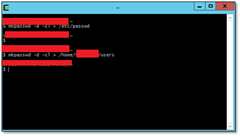
4. Open CygWin Shell and execute following commands to obtain user information

image30

5. Change home directories of users in /etc/passwd file as shown below

image39

6. Create home directories in F drive and create folders for each client

image

7. Create sub folders for each users within the client

image

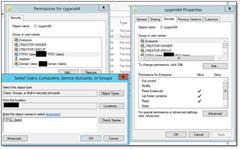
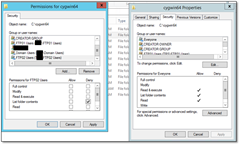
8. Deny permissions for SFTP user groups in CygWin root directory

image53

image59

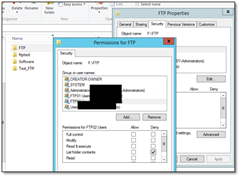
9. Deny permission for SFTP user groups in SFTP root directory (F:/FTP)

image69

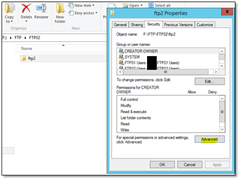
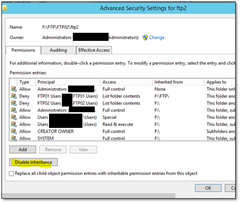
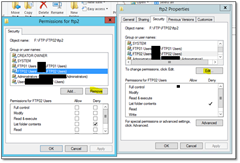
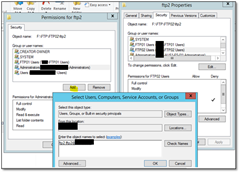
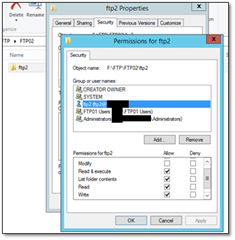
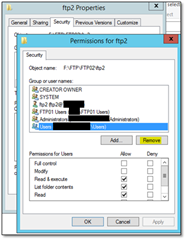
10. Now we need to provide permission to specific user folders. We need to disable permission inheritance as shown below

image74

image79

image

image89

image96

image101

image105

11.  Check using FTP client

image

If we try to browse the directory in client level, an error message will be displayed

image

That is the expected behavior. that means the a specific user can interact with his own content only.

Wednesday, November 18, 2015

Enable “BI Semantic Model Connection” content type in SharePoint 2013 site collection

In one of my SharePoint environments, I had configured PowerPivot for SharePoint service application.

My requirement was to create a new client site collection and create a BISM connection to my analysis server. Finally my users consume that connection to analyze content using Microsoft Excel.

When I create a document library to create my BISM model, I couldn’t find the required content type. Following were the steps I used.

1. Navigate to PowerPivot for SharePoint 2013 Configuration

image

image

2. Select the new site collection to enable BISM and click run to enable necessary services.

image

3. Create a document library in that site and allow BISM content type

image

image

image

image

image

image