Sunday, February 15, 2015

Presentation–Enhance user experience for Search using display templates

Recently I did a presentation on “Search Display Templates” at Sri Lanka SharePoint forum. In that session I discussed about display templates in general and different customization options.

If you need more information on Display Templates, you can refer these posts I have written so far.Following is the presentation I did

Wednesday, January 21, 2015

SharePoint 2013 with SQL Server 2014, Resolving “UserProfileApplication.SynchronizeMIIS: Failed to configure MIIS post database, will attempt during next rerun. Exception: System.Configuration.ConfigurationErrorsException: ERR_CONFIG_DB”

User profile service synchronization in SharePoint is not the favorite among administrators. If not its prerequisites are addressed properly it will definitely cause you problems. Fortunately those steps are discussed in Technet as well as in some technical blogs.

Although I’ve followed best practices, I had trouble in starting the “User Profile Synchronization Service” service in the services on this server section. It got stuck in Starting and later it showed as Error.

Luckily ULS logs came in to rescue. following is the full error message I received.

UserProfileApplication.SynchronizeMIIS: Failed to configure MIIS post database, will attempt during next rerun. Exception: System.Configuration.ConfigurationErrorsException: ERR_CONFIG_DB   
at Microsoft.Office.Server.UserProfiles.Synchronization.ILMPostSetupConfiguration.ValidateConfigurationResult(UInt32 result)   
at Microsoft.Office.Server.UserProfiles.Synchronization.ILMPostSetupConfiguration.ConfigureMiisStage2()   
at Microsoft.Office.Server.Administration.UserProfileApplication.SetupSynchronizationService(ProfileSynchronizationServiceInstance profileSyncInstance).

It seems that SharePoint Server 2013 farms without April 2014 Cumulative Update does not support user profile synchronization in SQL Server 2014. Following is the exact text from the CU download page (KB)

image

Once it is installed in all SharePoint servers I was able to easily start profile synchronization. I will dig little deeper in to the cause of the issue later. But for the time being will stop in this point. One thing to remember is that you should install SharePoint Server 2013 SP1 prior to the cumulative pack update

Monday, January 19, 2015

Presentation-Introduction to SharePoint 2013 at Public Utilities Commission of Sri Lanka

Following is the presentation I did at PUCSL, with some demonstrations using a sample Office 365 tenant created using www.microsoftofficedemos.com

Sunday, January 11, 2015

Change existing application pool identity of a SharePoint web application

Following is the PowerShell script I used to change current application pool identity to a different managed account.

  1. $web = Get-SPWebApplication "http://sp13"
  2. $account = Get-SPManagedAccount -Identity "dev\portalapppool"
  3. $web.ApplicationPool.ManagedAccount = $account
  4. $web.ApplicationPool.Update()
  5. $web.ApplicationPool.Deploy()

That’s all I had to do :)

I described how to change application pools for service applications in this article. It has answers to your questions like, “Why can’t I change the application pool identity directly from the IIS itself?”.

Sunday, December 28, 2014

Maintain multiple copies of same document effectively using “Manage Copies” feature

Sometimes we need to have copies of same document in multiple SharePoint sites. Let’s assume that each site should contain important documents as shown below.

image

Above setup prompts us following questions

Q1. Is it a good practice to upload documents manually in each site?

Q2. What if we have thousands of sites?

Q3. What if those documents need to be updated regularly?

Above valid questions leads us to keep those documents centrally and publish copies to whatever locations they need to be.

We can achieve above task using SharePoint search, but with few limitations

  • Original location of documents are visible to end users
  • Difficult to check amount of copies (in published sites) from the original document location
  • Difficult to publish a particular version only to a selected sites
  • and many more…

How can we overcome above limitations?

Instead of using search, we can use out of the box and heavily underrated “Manage Copies” feature.

Following are the steps to publish and share documents using “Manage Copies” feature

1. Store documents in a document library

image

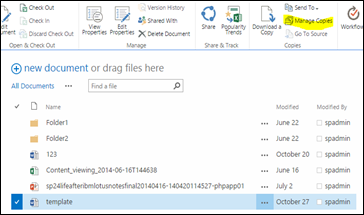
2. Select the document and click on “Manage Copies” icon
image

3. Click on “New Copy” link and provide the URL of the destination site

image

3. I prefer to click on “Update Copies” link to copy documents instantly

image

3. We can check destination libraries to see the success

image

As shown above we can maintain multiple copies of the same documents, where we can store the original document centrally.

As we have now solved half of the problem, let’s focus on how to update copies of a particular document.

Let’s say that there is an amendment to the leave policy and we have thousands of project sites those having copies of that leave policy. How can we reflect the change to those sites? It’s very easy. Following are the steps

1. Check Out the document in the original document library

image

2. Do the change to the document

image

3. Save the document and Check In. Remember to select “Update copies of this document with the new version” option

image

4. This will prompt another window showing all the copies of that document. If we don’t want the update to reflect on a particular site we can leave it by not checking the checkbox.

image

5. We can check destination libraries to see the success

image

In this article I explained the usage of “Manage Copies” feature to effectively manage copies of important documents.

Hope this helps someone Smile

Monday, December 15, 2014

Install SQL Server Reporting Services in multi server SharePoint 2013 farm with Windows 2012 R2 and SQL Server 2014 hosted in Azure VMs

Recently I installed SQL Server Reporting Services in SharePoint integrated mode in following multi server environment. I used Windows Server 2012 R2 for the operating system and SQL Server 2014 as the database server. My server farm is hosted in Azure VMs.
image
So following are the steps I used to install and configure SSRS

1. Installation of Reporting Services in SharePoint mode and Reporting Services add-in for SharePoint in Application server
  • Download SQL Server 2014 image in application server and start the setup
  • Select Reporting Services – SharePoint and Reporting Services Add-in for SharePoint
  • Complete the installation
rs

2. Installation of Reporting Reporting Services add-in for SharePoint in WFE server
  • Download or copy SQL Server 2014 image in WFE server and start the setup
  • Select Reporting Services Add-in for SharePoint
 image
  • Complete the installation
3. Register SQL Server Reporting Services service in SharePoint 2013
  • We have to execute following two commands in both servers
Install-SPRSService
Install-SPRSServiceProxy
4. Start SQL Server Reporting Services service in App server
image

5. Create new SQL Server Reporting Services service application in Central Administration
image
That’s all we need to do.

Caution !!

Prior to the above successful configuration, I tried the same using Reporting Services Add-in utility downloaded from Microsoft.

Unfortunately it got the SQL Server Reporting Services Service stuck in Starting
Capture
Finally I was able to complete it after downloading the SQL Server image to my server to do the configuration as I mentioned above

Monday, November 17, 2014

SharePoint Demonstration and Presentations at Gartner Symposium - Gold Coast Australia

I was lucky to be a part of Sri Lankan pavilion in Gartner Symposium 2014. I presented and demonstrated SharePoint 2013 and Office 365 capabilities. Following were the most looked after business requirement

  • More user friendly Wiki sites
  • SharePoint Apps
  • Migration to cloud
  • Business process automation

IMG_0633IMG_0642

IMG_0640 

IMG_0654