Monday, November 17, 2014

SharePoint Demonstration and Presentations at Gartner Symposium - Gold Coast Australia

I was lucky to be a part of Sri Lankan pavilion in Gartner Symposium 2014. I presented and demonstrated SharePoint 2013 and Office 365 capabilities. Following were the most looked after business requirement

  • More user friendly Wiki sites
  • SharePoint Apps
  • Migration to cloud
  • Business process automation

IMG_0633IMG_0642

IMG_0640 

IMG_0654

Wednesday, October 22, 2014

SharePoint 2013 on Azure–Solving “Error while enabling Windows feature : NetFx3” in Windows Server 2012 R2

When we deploy SharePoint 2013 in Windows Azure, there are few obstacles we need to tackle. I had following conditions in my environment
  • Windows Server 2012 R2 Datacenter image as the VM image
  • Virtual machines are located in Azure Virtual Network
In this article series I will discuss some issues we faced and solutions we used to overcome them
In this post I will explain the first issue we came across.
The issue occurred while we installing SQL Server, where the installation process failed to install dot net framework 3.5. The actual error message was as below
“Error while enabling Windows feature : NetFx3, Error Code : -2146498298 , Please try enabling Windows feature : NetFx3 from Windows management tools and then run setup again. For more information on how to enable Windows features , see http://go.microsoft.com/fwlink/?linkid=227143
As certain sources mentioned, I used “Add Roles and Features Wizard” and specified alternate source path to pic relevant files from Windows image. But it still prompted me following error.
image
I tried the same task using command line, but the operation failed after 62% or 66%
After hours of struggling, following are the remedies I used to arrive at a solution

Remedy 1 : Disable IP6, and Provide Google DNS as an alternative DNS
image   image

Remedy 2 : Download the latest Windows Server 2012 R2 Data Center Image
From this link you can download the trial image.

Remedy 3 : Configure group policy “Specify settings for optional component installation and component repair
When this policy is enabled, a network location (for example, a file server) can be specified for both repair of the feature file store, and to enable features that have their payload removed. The Alternate source file path can point to a \sources\sxs folder or a Windows image (WIM) file using the WIM: prefix
To enable the policy, navigate to Computer Configuration\Administrative Templates\System in Group Policy Editor
image
image
After enabling the policy, run “gpupdate” to refresh the policy

Remedy 4 : Execute following command to Activate dot net 3.5
Open a PowerShell windows as the administrator and execute following command to install dot net 3.5 with required prerequisites. I extracted the downloaded image in a drive so I provided that location as the source
  1. Dism /online /enable-feature /featurename:NetFx3 /All /Source:E:\sources\sxs /LimitAccess
Above remedies allowed me to install dot net 3.5 and continue the SQL Server installation without further issues.

Monday, October 6, 2014

Awarded Microsoft MVP for SharePoint Server

On 1st of October 2014 I was honored with the MVP (Most Valuable Professional) award for SharePoint Server.

download

It was a dream come true and thanks Microsoft for recognizing the work our community have done.

I take this opportunity to thank my colleagues who helped me to achieve this specially Prabath Fonseka, Wellington Perera, Katherine Chen and Sri Lankan SharePoint community.

It's been a long and arduous journey so far, but the real challenge is just beginning.

Thursday, September 25, 2014

Resolve “The property does not exist on type 'SP.ListItem'. Make sure to only use property names that are defined by the type” error when posting field values using SharePoint REST api

When I tried to update field data of a document in a document library using REST api I got Bad Request (400) error message. Surprisingly this was the same code which is working on my office 365 environment. Following is the full error message

The property 'ContentTypeId' does not exist on type 'SP.ListItem'. Make sure to only use property names that are defined by the type

Following is the code I used to update the document

  1. var updateUrl = "http://sp13/sites/dev/_api/Web/GetFileByServerRelativeUrl('/Sites/dev/Lists/DOA/Test/CSM.docx')/ListItemAllFields";
  2.  
  3. $.ajax(
  4. {
  5.    'url': updateUrl,
  6.    'method': 'POST',
  7.    'data': JSON.stringify({
  8.        '__metadata': { 'type': 'SP.ListItem' },
  9.        'ContentTypeId': '0x0101005C9775F3130F7A498C5C8CF69C1750AE03'
  10.    }),
  11.    'headers': {
  12.        'accept': 'application/json;odata=verbose',
  13.        'content-type': 'application/json;odata=verbose',
  14.        'X-RequestDigest': $('#__REQUESTDIGEST').val(),
  15.        'X-Http-Method': 'MERGE',
  16.        "If-Match": "*"
  17.    },
  18.    'success': function (data) {
  19.        alert('success');
  20.    },
  21.    'error': function (err) {
  22.        alert('error');
  23.    }
  24.   }
  25. );

The reason for above error is that the type attribute is not compatible in this scenario. I need to provide the exact entity name instead of generic SP.ListItem.

How can I find the entity name for the list? it is very easy. I just need to provide following request.

http://sp13/Sites/dev/_api/lists/getbytitle('DOA')

Following is the entity name that I should use in my code

image

Following is the modified code that works on my on premises environment as well

  1. var updateUrl = "http://sp13/sites/dev/_api/Web/GetFileByServerRelativeUrl('/Sites/dev/Lists/DOA/Test/CSM.docx')/ListItemAllFields";
  2.  
  3. $.ajax(
  4. {
  5.    'url': updateUrl,
  6.    'method': 'POST',
  7.    'data': JSON.stringify({
  8.        '__metadata': { 'type': 'SP.Data.DOAListItem' },
  9.        'ContentTypeId': '0x0101005C9775F3130F7A498C5C8CF69C1750AE03'
  10.    }),
  11.    'headers': {
  12.        'accept': 'application/json;odata=verbose',
  13.        'content-type': 'application/json;odata=verbose',
  14.        'X-RequestDigest': $('#__REQUESTDIGEST').val(),
  15.        'X-Http-Method': 'MERGE',
  16.        "If-Match": "*"
  17.    },
  18.    'success': function (data) {
  19.        alert('success');
  20.    },
  21.    'error': function (err) {
  22.        alert('error');
  23.    }
  24.   }
  25. );

Friday, September 19, 2014

Get “Multiple lines of text” field value using SharePoint 2013 REST services

If we get list item from SharePoint REST services, we may get unexpected results for “Multiple lines of text” fields. Let’s take the scenario given below. I used following service to get results.
https://sp13/sites/dev/_api/web/lists/getbytitle('r')/items(4)
Instead of the field value we may get a escaped html string like below.
image
The reason for this behavior is that the column is enabled for rich text. If we want to keep the rich text input, we may need to escape the string using RegEx for some JavaScript functionality. For an example we can use following script to display expected comment in a textbox.
tmpComment = data.d.AGMComment != null ? data.d.AGMComment.replace("'", "") : "";
$('#txtApprovalComments').val($(tmpComment).text());
But if we don’t need the rich text behavior we can simply make the column to accept only plain text.
image
After modifying column settings as shown above, following will be the output from the same service call
image

Wednesday, September 17, 2014

SharePoint 2013 Visual Studio based workflow - customize task approval email to include link to respective task

In SharePoint 2013 workflow architecture is drastically changed when compared with SharePoint 2010. Some new activities like “HttpSend” are introduced to the platform and some activities are improved a lot. On the other hand some scenarios became very hard to implement.

Let’s assume that we have a SharePoint 2013 Visual Studio based workflow and need to assign a task to a user. We expect the notification email to contain the link to respective task. isn’t it ?

In SharePoint 2010 it was very easy to include the task url in the mail. But that is not the case anymore. It’s not possible to include the task url in the default mail. Instead it is sent like below which is not user friendly.

image

In this post I’ll show a workaround to resolve the problem. Following are the steps we need to perform

1. Add “SingleTask” activity and configure necessary parameters

image

2. Modify WaitForTaskCompletion property to false

This will avoid the “SingleTask” activity to wait until the approval. Furthermore change “WaiveAssignmentEmail” property value to “Yes” which avoids the notification email.
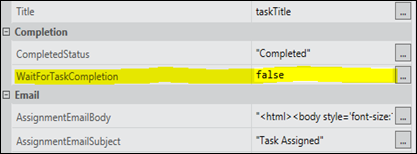
image

3. Compose an email manually

In this email I’ll include a link to assigned task. To get the guid of task list, I will use “GetTaskListId” activity. Furthermore I’ll get the task id from “SingleTask” activity output.

From those elements I’ll construct the url of the assigned task

e.g.: “http://sp13/sites/dev/DOAApprovalForm.aspx?List="+taskListId.ToString()+"&ID="+taskItemId+"

Then I’ll construct the email body as I wish

  1. "<html><body style='font-size:11pt;font-family:Segoe UI Light,sans-serif;color:#444444;'><div>Contract comment is : " + contractComment+ " </br>Please approve this <a href="+siteUrl + "SitePages/DOAApprovalForm.aspx?List="+taskListId.ToString()+"&ID="+taskItemId+">Task</a></div></body></html>"


4. Handle Approve or Reject actions using a “Pick” activity

We will use “WaitForFieldChange” activity to pause the workflow until user presses Approve or Reject buttons. Since there are two possible values in the pausing field we need to use a “Pick” activity

image 

5. As mentioned earlier, we will use “WaitForFieldChange” activities on both branches, configured for “TaskOutcome” field.
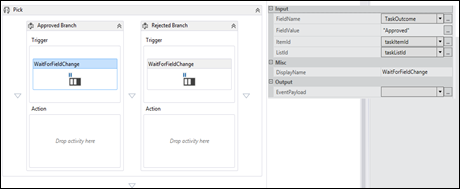
image

For the first “WaitForFieldChange” activity, the FieldValue is set to “Approved” and for the other one it is “Rejected”

6. I’ll update the taskOutcome with respective values to continue the workflow
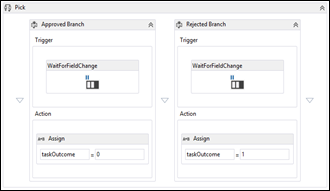
image

This will allow us to modify email as we wish and pause the workflow until the task is approved or rejected

image

Tuesday, September 2, 2014

Open a div in SharePoint modal dialog

Sometimes we need to load a div in modal popup instead of a page. Following is an example code that we can use in such scenarios.

In this scenario I use a modal popup to load file upload control in the same page.

  1. function Opendialog(ctType) {
  2.   SP.SOD.executeOrDelayUntilScriptLoaded(function () {
  3.     var element = document.createElement('div');
  4.     element.innerHTML = '<input type="file" id="documentUpload" accept="*" /><input id="btnUpload" type="button" value="Upload" onclick="UploadFile(\'' + ctType + '\')"; />';
  5.  
  6.     SP.UI.ModalDialog.showModalDialog({
  7.      html: element,
  8.      title: 'Document Upload',
  9.      allowMaximize: false,
  10.      showClose: true,
  11.      dialogReturnValueCallback : Function.createDelegate(null, CloseCallback),
  12.      autoSize: true
  13.     });
  14.    }, "SP.js");
  15. }
  16.  
  17. function CloseCallback(result, target) {
  18.    location.reload(true);
  19. }