Recently I did a presentation at Sri Lanka SharePoint forum regarding the usage of OAuth in SharePoint 2013
Thursday, March 14, 2013


Wednesday, February 13, 2013
Export Solution Packages (WSP) from SharePoint farm using PowerShell
When we deploy an updated version of a solution package, it’s better to take a backup of the currently deployed version. Although we can build the appropriate version from the version controlling system if there any, it’s always safer to get the current working solution package which is proven working in that environment.
Following script extracts a set of solution packages you wish to download from the farm.
- $packages = @("solution1.wsp","solution2.wsp")
- $solutionPath = "C:\Backup\"
- foreach ($solution in (Get-SPFarm).Solutions)
- {
- if($packages -contains $solution.Name)
- {
- $filename = $Solution.SolutionFile.Name
- $solution.SolutionFile.SaveAs($solutionPath + $filename)
- }
- }
Monday, February 11, 2013
Delete corrupted site collections in SharePoint
When I try to get a list of all the site collection in a SharePoint web application, the script throws an exception stating that it can’t find a specific site collection.
I went to the central administration to check if that site collection exist. It shows the site collection but all other information (e.g Content database, etc..) were empty. Since I don’t need the site I decided to delete that. But I couldn’t delete the site using central administration.
I tried to use the well known PowerShell cmdlet Delete-SPSite which throws a com error <nativehr>0x80070003</nativehr>

Following PowerShell script was successful in deleting the site
$site = Get-SPSite http://sp2013/sites/19014$id = $site.Id
$contendDb = $site.ContentDatabase
$contendDb.ForceDeleteSite($id, $false, $false)
You can get more information on ForceDeleteSite command from this Url
Sunday, January 20, 2013
SPWeb.Groups vs SPWeb.SiteGroups
When we programmatically work with user groups in SharePoint we have 2 options. Either to use SPWeb.Groups or SPWeb.SiteGroups. In this article I’ll explain the difference between those collections.
Before we start on the topic, you can read on basics of SharePoint user groups by referring to this post
Definitions
SPWeb.SiteGroups will provide a collection that include all the security groups those are created within the same site collection.
On the other hand SPWeb.Groups collection will list all security groups those are referred (used) within the sub site (SPWeb object).
I’ll describe certain characteristics of each collection below
1. Can’t use SPWeb.Groups to add new groups
As mentioned in previous post, permission groups are created at the root (Site collection) level. Although it is possible to navigate to People and Groups section in sub site to create a group, that group will be originally created at the site collection level.
So the point to note is you can’t create a security group at the sub site level. You can easily understand the concept using code sample given below.

2. Use SPWeb.SiteGroups to create new group
In order to add the user group we need to use SPWeb.SiteGroups collection as shown below.
- //Create user group
- var login = @"dev\spadmin";
- var user = web.EnsureUser(login);
- var member = web.EnsureUser(login);
- web.SiteGroups.Add("Test Group", member, user, "");
3. A group is available in SPWeb.Groups collection only if that is referred within the web
To explain the concept I’ll print SPWeb.Groups and SPWeb.SiteGroups collections. Following is the result I got

As you can see, the “Test Group” we just created is not listed in the SPWeb.Groups collection. That is because it’s not being referred (used) within the site. Now we will break permission inheritance of a document library and add the same group to that

Now the Test Group is available in SPWeb.Groups collection.

Wednesday, January 16, 2013
How security groups work in SharePoint
It’s important to know how SharePoint groups behave when we break the permission inheritance. I’ll take a scenario to explain
Let’s assume I have a site collection with 2 sub sites (Web 1 and Web 2) where I’ve broken the permission inheritance. Then I go to site permission in each web and create groups (Group 1,2,3 and 4) as shown in the diagram below.

Following are some observations/conclusions.
1. Security groups are created at root (site collection) level
Although we break the inheritance, if we create a group it’ll be created in the root level. So all 4 groups will be listed in People and Groups in site level. That group collection is referred to as Site Groups.
2. Site Groups collection ≥ Local Web Groups collection
If we go to a web (e.g.: “Web 1”) and navigate to People and Groups we can see only a subset of groups (Group 1 and 2) from site groups (Group 1,2,3,4) . This is because those are the only groups used within that web.
3. A security group is available in web group collection only if that group is referred within that web
The 2nd observation is in fact due to this. In local group collection of “Web 2” only 2 groups (“Group 1”, “Group 2”) are available because those are the only groups used within that web.
To explain the concept further, I’ll make the scenario broader. Now I’ll create a list in “Web 2” and break the permission inheritance. Then I’ll add “Group 1” to the list (Remember that we created “Group 1” for “Web 1” and was not available in local web group collection of “Web 2”). Updated scenario is given in below image.

If you navigate to People and Groups in “Web 2”, you can see “Group 1” also available in the collection of groups. So the conclusion is that if a group is used in somewhere in a web (irrespective of which web we used to create the group in same site collection), it will be available in local web groups collection
Friday, December 14, 2012
Presentation–SharePoint 2010 development with WCF
Recently I did a presentation at Sri Lanka SharePoint forum regarding SharePoint 2010 development with WCF

You can download the source code from this link
Monday, December 10, 2012
Patch management in SharePoint
Application of regular security patches and updates is vital for any system. It is same for our SharePoint environment as well. But we should be very careful in patching, as our SharePoint environment can contain mission critical data as well as customization. Data and customization need to be preserved 100% for the patching exercise to be a success.
First we need to understand how Microsoft releases patches for SharePoint.Microsoft provides following types of patches
We can get information on any security update or vulnerability from Microsoft Security Bulletins site. In that site we can search for SharePoint related updates. Once we get the update we need to assess the risk of applying such update.
To assess risks and identify the course of action I use following as the guideline
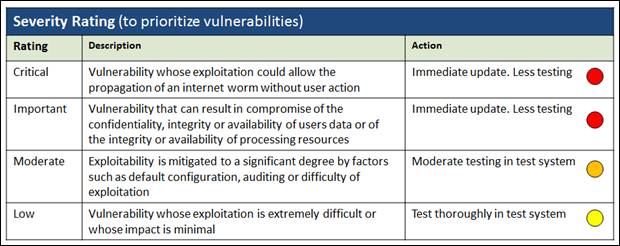
After risk assessment I follow the process given below to apply patches and updates to my production environments

First we need to understand how Microsoft releases patches for SharePoint.Microsoft provides following types of patches
| Hot fixes | Released whenever Microsoft encounter vulnerability/issue on SharePoint |
| Cumulative updates | Collection of hot fixes and security updates released every 2 months |
| Service Packs | Collection of fully tested cumulative updates |
We can get information on any security update or vulnerability from Microsoft Security Bulletins site. In that site we can search for SharePoint related updates. Once we get the update we need to assess the risk of applying such update.
To assess risks and identify the course of action I use following as the guideline

After risk assessment I follow the process given below to apply patches and updates to my production environments

Subscribe to:
Posts (Atom)