This is the third part of the article series on how to manage SharePoint Framework solution in a team environment
- Configure SharePoint Framework solution with Git
- Integrate SharePoint Framework solution in to TFS project
- Automate build and release for SharePoint Framework solution
In this blog post I’ll explain how to automate build and release process for SharePoint Framework solutions. This uses ALM API which was released recently.
- Download sample SPFX solution : https://github.com/dinushak/SPFxTest
- Download deployment script : https://github.com/dinushak/SPFxTest/blob/master/publishapp.ps1
Configure Solution
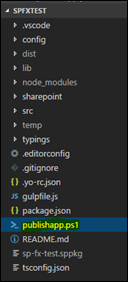
Add following script to the root of the solution. This script will retract if previous version of the solution already exists. Then it will add the solution to App Catalog site and then to the SharePoint site that you wish your customization to be published.
Param(
[string]$username,
[string]$password
)
$packagePath = ".\release\sharepoint\solution\sp-fx-test.sppkg"
$encpassword = convertto-securestring -String $password -AsPlainText -Force
$cred = new-object -typename System.Management.Automation.PSCredential -argumentlist $username, $encpassword
Connect-PnPOnline -Url "https://dinushaonline.sharepoint.com/sites/dev" -Credentials $cred
$appExist = Get-PnPApp | ? { $_.Title -eq 'SPFxTest' }
if ($appExist -ne $null) {
Uninstall-PnPApp -Identity $appExist.Id
Unpublish-PnPApp -Identity $appExist.Id
Remove-PnPApp -Identity $appExist.Id
}
Add-PnPApp -Path $packagePath -Publish -Overwrite
$appAfterAdd = Get-PnPApp | ? { $_.Title -eq 'SPFxTest' }
Publish-PnPApp -Identity $appAfterAdd.id
Install-PnPApp -Identity $appAfterAdd.id
Configure Build
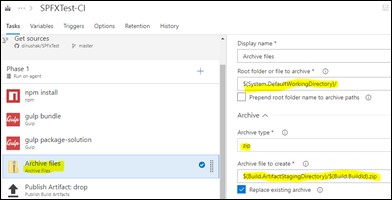
Create a new build definition in your TFS Online environment to perform continuous integration


We have to perform npm install, gulp bundle, ship and archive steps in following steps



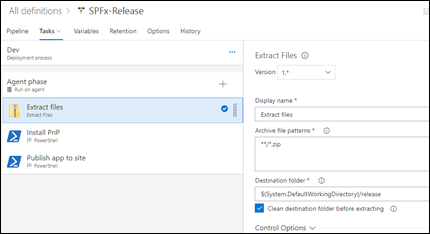
Configure Release
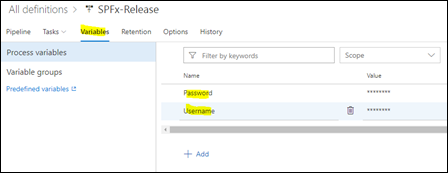
Create variables for SharePoint online username and password which will be used in publishapp.ps1 script
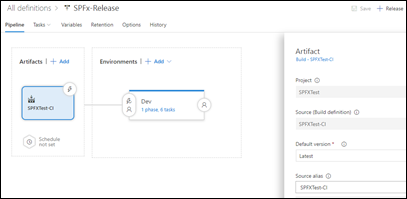



Enable Continuous Deployment
This step will be used to automatically trigger a release as soon as a build is succeeded


