Showing posts with label Service Applications. Show all posts

Thursday, April 7, 2016

Stop unresponsive SharePoint 2013 service application service using PowerShell

In SharePoint we have Services on this Server page to manage different services like User Profile Service and SQL Server Reporting Services Service. Using that interface we can easily stop certain services from some servers and start them in other servers.

In one of my SharePoint farms, I needed to stop certain services in a particular server. I click on the stop link, but it was stuck in “Stopping”

image

I tried restarting SharePoint Timer Service and other remedies found in internet, but i was not that lucky.

I tried PowerShell as well.

First get the GUID of the required service application service using following command

Get-SPServiceInstance
I used following command to stop the service
Stop-SPServiceInstance -Identity "297f0d12-c09e-4182-8c42-e28065a36027"

image

There seems to be an unresponsive job. Let’s see the job first.

Get-SPTimerJob | where {$_.name -like "job-service-instance-297f0d12-c09e-4182-8c42-e28065a36027"}

image

Let’s delete the Job

$deleteJob = Get-SPTimerJob | where {$_.name -like "job-service-instance-297f0d12-c09e-4182-8c42-e28065a36027"}
$deleteJob.delete()

image

Then we will use PowerShell command to stop the service

Stop-SPServiceInstance -Identity "297f0d12-c09e-4182-8c42-e28065a36027"

image

After few seconds the service was stopped successfully

image

Wednesday, January 29, 2014

Change application pool of an existing service application

This is the 4th post of the article series regarding service applications

As I mentioned in a previous post, If we create a new service application an application in IIS is also created. That allows us to isolate service applications by providing different application pools. In this article I will show how to assign a new application pool to an existing service application.

Can we manually create an application pool with a proper identity in IIS and assign it to the service application ? It is the wrong way of assigning the application pool

The wrong way

To demonstrate above fact I created a new Managed Metadata Service application and associated it with an existing application pool named MMS2 using central administration.

Then I’ll go to IIS Manager and create a new application pool manually and associate it with our service application as below

image

Although IIS allows us to associate application with new application pool, SharePoint does not know the change. To show that we will use following PowerShell commands.

  1. $app = Get-SPMetadataServiceApplication -Identity 796cb0d5-b8cf-4e0c-a03b-1d8cc285efe3
  2. $app.ApplicationPool

Following is the result I got

image

To stress the point further, I will stop the “Managed Metadata Web Service” in services on this server section. Then all Managed Metadata Service related applications in IIS will be deleted. Once I start the service again those applications will be recreated in IIS. As you can see the application pool of the service application is reverted back to MMS12 (with it’s Guid) and no longer “MMS2AppPool”

image

The correct way

The first thing to not is that, service applications need to be associated with an instance of SPServiceApplicationPool. Following is the way to do that.

  1. #Create new application pool
  2. $managedAccount = Get-SPManagedAccount -Identity "dev\spserviceapp"
  3. $servicePppPool = New-SPServiceApplicationPool -Name MetadataApplicationPool -Account $managedAccount
  4.  
  5. #Assign application pool to service application
  6. $app = Get-SPMetadataServiceApplication -Identity 796cb0d5-b8cf-4e0c-a03b-1d8cc285efe3
  7. $app.ApplicationPool = $servicePppPool
  8. $app.Update()

Following is the result I got

image

Now it doesn’t matter if I stop and start the service instance, the application pool remains the same.

Saturday, January 25, 2014

How to plan Service Applications in SharePoint 2013

This is the 3rd post of the article series regarding service applications

When we setup a new SharePoint environment, we should plan service applications properly. There are certain factors and best practices to consider before we configure any service application. In this article I will provide few points which will be important to consider when we do service application provisioning.

1. What are the service applications I need?

If we use configuration wizard to setup the SharePoint farm, it’ll setup all selected service applications with default settings. By default all service applications except “Lotus Notes Connector” are selected.

image

Although this will setup almost all service applications, we may not need most of them. On the other hand we may need to specify different settings when configuring (e.g.: different managed accounts).

To overcome above limitations, the best practice is to use a scripted installation which will setup and configure service applications those are required.

Let’s assume that we need only Search, Managed metadata and User profile service applications for an environment. In that scenario we may not configure other service applications like Excel services, Access services, PerformancePoint services, etc..

By provisioning only relevant service applications, we can reserve resources like processing power, memory etc.. as well as we can focus on maintenance and administrative activities of those applications only

2. What is the service application topology which suits the business requirement?

There are two main types of topologies to consider

  1. Single farm service application topologies
    • Single farm with single application proxy group

    This is the most basic topology where all web applications use the same service applications 

    • Single farm with multiple application proxy groups

    In this topology we do have unique service application requirement for certain web applications (e.g.: departments). In that case we will create new proxy groups probably with new service applications

    • Single farm with multiple application proxy groups and multiple application pools

    In this topology we are focusing on isolating certain service applications from others. As we mentioned in an earlier post that when we create a new service application, an application in IIS also created. So we can specify different application pools with probably different identities as execution accounts,

  2. Cross farm service application topologies
    • We can share following service applications across farms
      • Business data connectivity
      • Managed metadata
      • User profile
      • Search
      • Machine translation
      • Secure store

3. What are the resources I need?

When provision a service application we need to allocate resources for that application in forms of processing power, memory, disk space as well as separate servers. There are some resource-intensive service applications like Search service, Excel services, Visio services, etc..

Some service applications require databases to store its data. For an example user profile service require 3 databases to store it’s content. Namely Profile, Social and Sync databases. Apart from that, creation of My Sites will also create content databases. This will definitely increase the storage requirement. Following are the types and storage requirement for service application databases
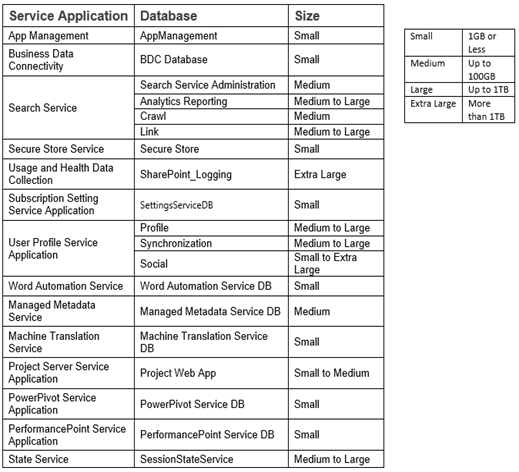
image

On the other hand Search service require storage space to physically store it’s index files. This can be very large depending on the searchable content. Roughly it’s between 5% to 20% of the searchable content that is being crawled. If the percentage of text is larger on those searchable content, the index space will also be increased.

It’s generally a best practice to utilize separate servers to resource-intensive applications like Search index. This is because Search service constantly crawl the content which require high amount of memory and processing power.

4. Do we need to consider high availability?

If we have multiple servers in the farm, we can start multiple instances of same service application on those servers. We don’t need to worry about load balancing as it’s handled by SharePoint itself.

In order to implement high availability on Search service, we need to modify the search topology to include search index replica and partitions. We need to increase partitions and replicas based on items that are being indexed by the search service.

Wednesday, January 22, 2014

How logical components of service applications map to physical components

This is the 2nd article of a series of articles regarding service applications. If you missed the first post you can visit it before proceeding with this.

It’ll be very helpful to know how each logical component of a service application (e.g: service application, service application instance etc..) are mapped to physical entities in the farm. In this article I’ll explain the relationship which will help you to understand the service application architecture properly

I’ll take Managed Metadata Service application to explain the relationship with physical components in the farm

1. Service application instance

When we setup SharePoint in a server, certain libraries and some resources are copied to the ISAPI folder in 15 hive (C:\Program Files\Common Files\microsoft shared\Web Server Extensions\15\ISAPI). Microsoft.SharePoint.Taxonomy.dll is also available in the same path which contains the application logic related to Managed Metadata Service.

Furthermore MetadataWebService.svc file which is used to host the service logic is located in WebServices folder in 15 hive (C:\Program Files\Microsoft Office Servers\15.0\WebServices).

image

Since we need to host the MetadataWebService.svc in IIS we need to start “Managed Metadata Web Service” from the services on this server section. If the service is started, we can say the Managed Metadata service application instance is running on that server.

image

2. Service application

If the service application instance is started in the server, when we create a service application from “Manage Service Application” section a new application will be created in IIS.

image

If we create multiple service applications, there will be multiple applications exist in IIS.

Lets assume that we’ve created two Managed Metadata service applications, then we can expect 2 applications in IIS which hosts the same MetadataWebService.svc service.

Following are the service applications I have

image

Following are the respective service applications created in IIS

image

3. Service application connection and proxy group

They are logical components but entries are kept in the database

Saturday, January 4, 2014

Service application architecture – Basic concepts

This is the beginning of a series of articles on service applications in SharePoint.

In this post I will cover some basic concepts about service applications. Although some topics like history and differences between old SSP model and service application model are omitted as there are enough resources available.

Following are the important keywords we should know

  • Service application instance : Actual instance of the service (binaries) running on the server
  • Service application : Logical component that contains the service configuration and management (e.g.: service application configuration info)
  • Service application connection : Interface used by the service consumers for communicating with the service and the load balancer
  • Service application proxy group : Group of service application connections associated with web applications

In this post I will present some scenarios where we can use above concepts differently.

1. One service application instance, one service application, one service application connection, one service application proxy group and one or more web applications

image

2. Multiple service applications with one service application instance and one service application connection for each, one service application proxy group and one or more web applications

image

3. Multiple service applications with one service application instance a for each, multiple service application proxy group and one or more web applications

image

4. Service applications with multiple service application instances

image

Monday, December 2, 2013

Reusing SharePoint custom service application proxy groups

When we create a new web application, we need to associate it with a service application proxy group. Either we can associate it with default proxy group or a custom group
image
Let’s say we need to create 2 web applications those require only Managed Metadata Service as a service application. In that case we need to go for a custom proxy group.
If we create those web applications using custom proxy group we can see 2 separate “Custom” proxy groups created.
Although they contain same service application proxies, We can’t reuse the groups by default. In that case if we need to associate a new service application proxy, we need to add it to each and every “Custom” group.
image
Is there any way to create named proxy groups where we can reuse for our web applications ?
We can use PowerShell cmdlets to create named proxy groups and add member service application proxies. Let’s say we create a proxy group named “Contoso” and we need only “Managed Metadata Service” for that group. Then we’ll need to provide following PowerShell commands.
New-SPServiceApplicationProxyGroup "Contoso"
$mmsproxy = Get-SPServiceApplicationProxy | where { $_.Name -eq “Managed Metadata Service” }
Add-SPServiceApplicationProxyGroupMember "Contoso" -Member $mmsproxy
Then we can see our group listed when we create a new web application (or changing the Service Application Association setting)
image
We can associate our existing sites using the Service Application Association section.

image
Now it looks very organized. If we need to associate new proxies we can add/remove them from our named proxy group which will be reflected for all associated web applications.